Record stops, speed loss and scrap · Guide 3 of 8
Marking scrap and tracking quality
How operators register scrap on specific production signals or through the Scrap menu, and how to edit or remove scrap.
On this page
Production operators can enter scrap quantity in different ways, depending on the details of the production process. It is also possible to set up an automatic scrap registration system if, for example, defect products run on a separate conveyor (contact Evocon support to get more information on how to set this up in your production process).
Entering scrap for all production shifts and products is important to ensure that OEE value is correct and to see how quality readings change over time.
How to mark scrap to a specific time?
If the production process is such that it is important to know exactly at what time scrap occurred, the operators can choose specific production signals to mark them as scrap.
-
Click on the production signal that should be marked as scrap.
-
You can use the arrows in the popover to move left and right to choose the specific signal, and you can also use the arrows on your keyboard for that (left-right, and up-down to change the row).

-
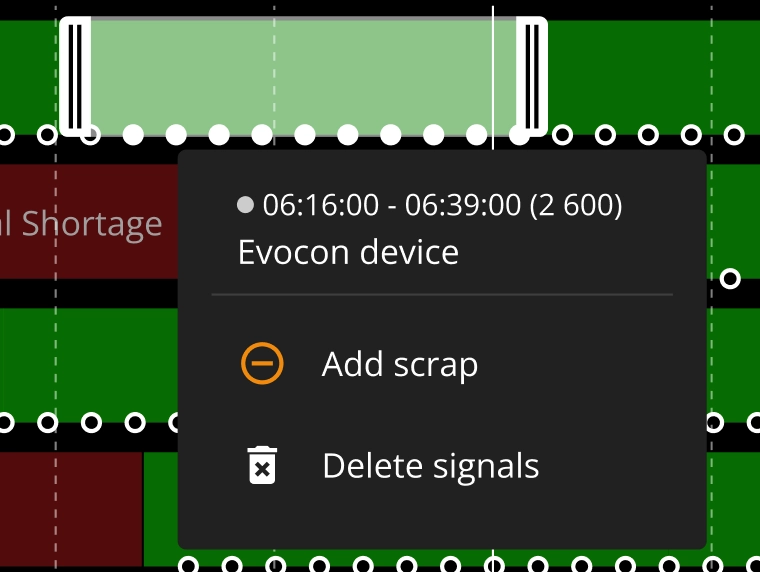
To select multiple signals, use the brackets icon and drag the brackets to include all the signals you want to mark as scrap:
-
-
Choose Add scrap in the popover; this opens the scrap details modal:
-
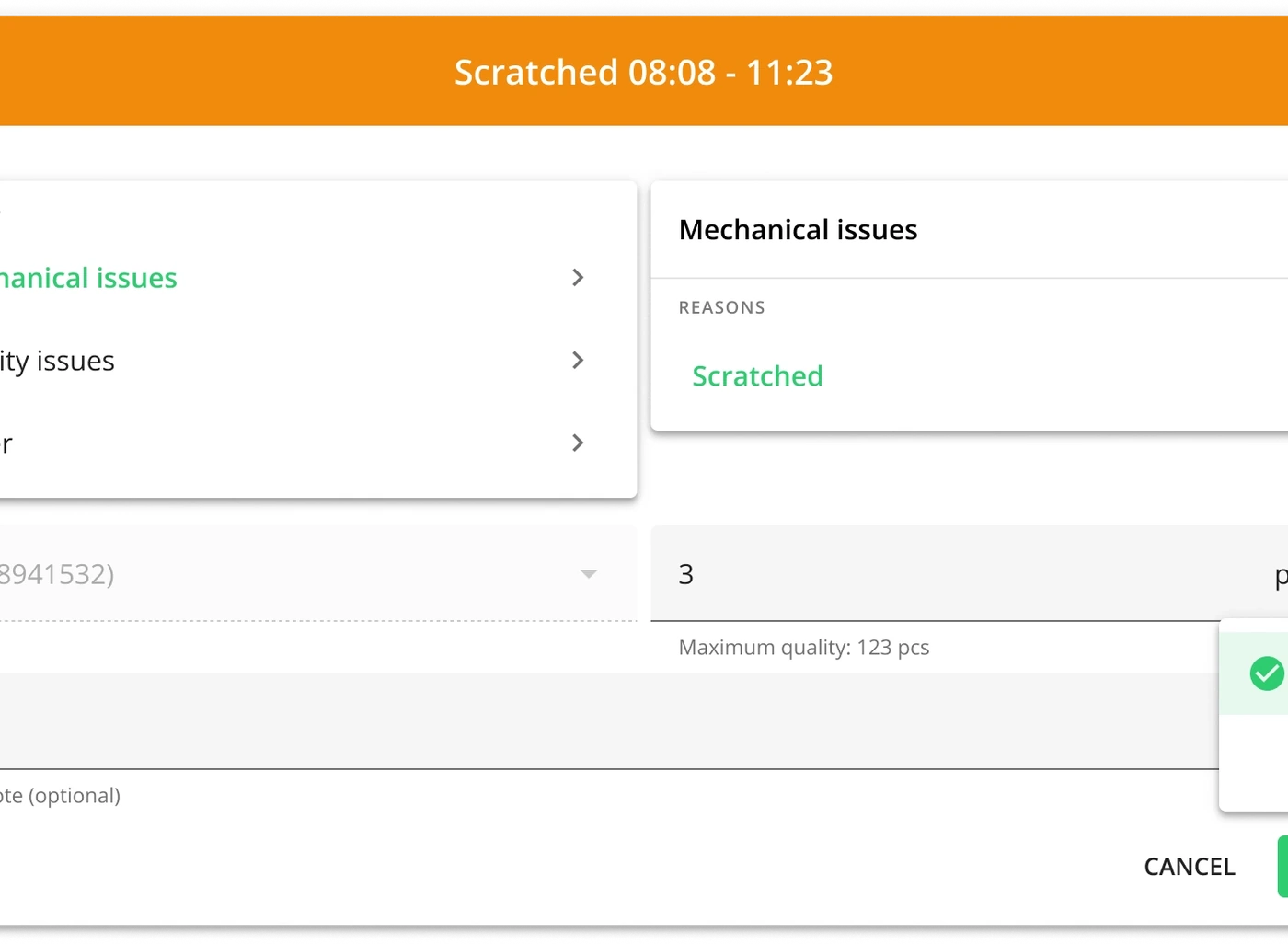
Scrap group and reason can be selected from the drop-down. Learn more about adding and managing scrap reasons here.
- If there aren't any scrap reasons defined, the user can adjust the quantity and the extra notes, and the reason is shown as "Uncommented" in the scrap overview, Reporting, etc.
- If there is just one reason defined, that reason is already pre-selected as default when the operator is adding scrap.
- If there are several scrap reasons, the first group is pre-selected by default, but the operator can search and select the correct reason from the groups/reasons.
- If there are at least 2 groups and 10 reasons, then most used reasons are also shown for quicker selection. These are calculated based on the last 30 days, by occurrence, not duration.
-
Product name
-
The quantity is automatically filled with the selected signal(s) quantity, but this can be edited by the operator. If just one signal is selected, the scrap amount is restricted to that quantity.
-
If there is an alternative unit defined for the product (more information here), it is also possible to select the unit in which the scrap is entered:

-
If you change the unit and the scrap quantity field already has a value in it (i.e. editing scrap quantity), it is converted according to the calculation in product route settings.
-
Maximum quantity is shown based on the selected unit (is converted).
-
If the user has entered scrap in alternative unit, then that becomes a default until another entry is done with the primary unit.
-
-
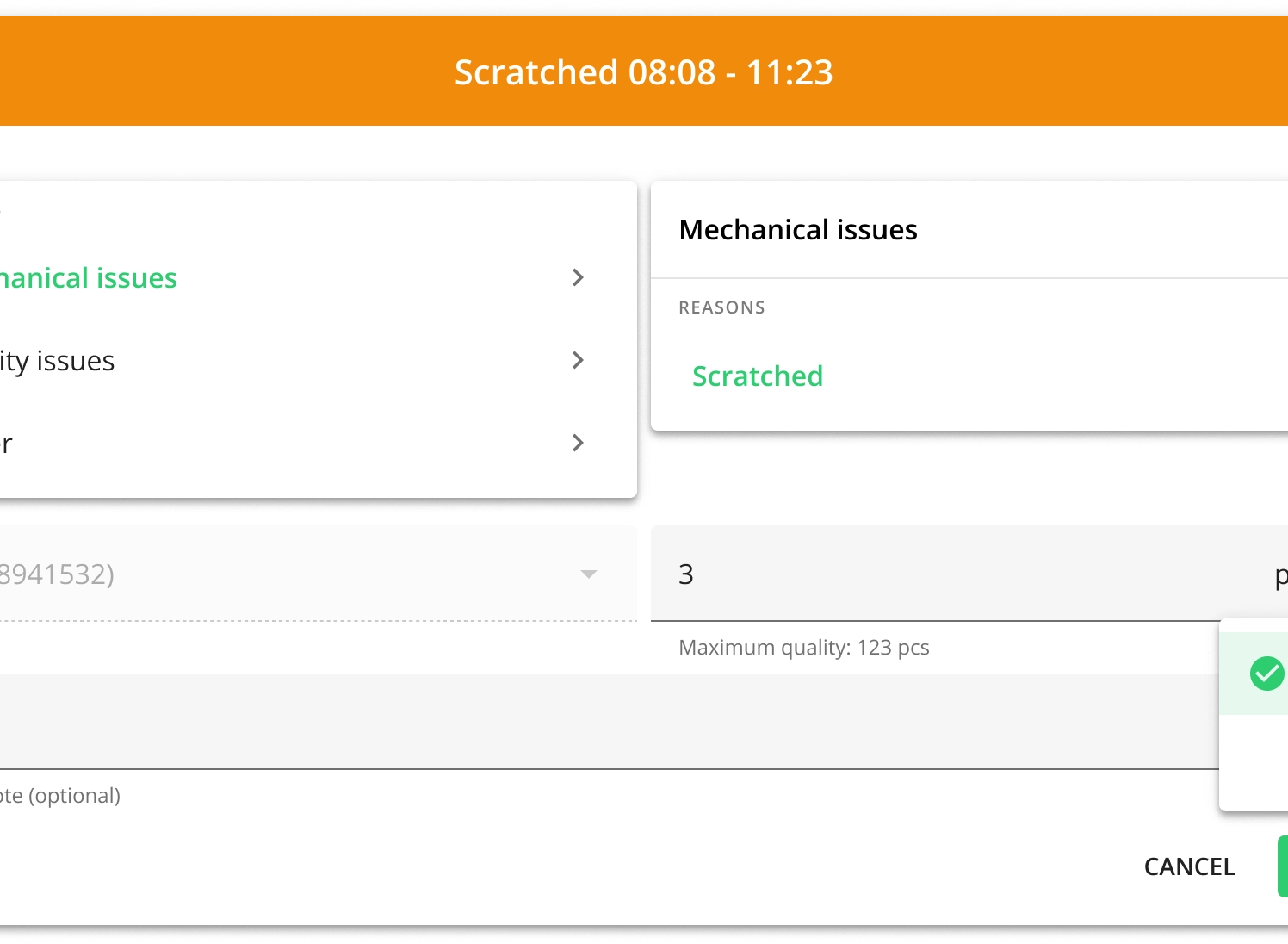
If required, extra note can be added.
-
-
Click Save to confirm.
Editing and removing scrap
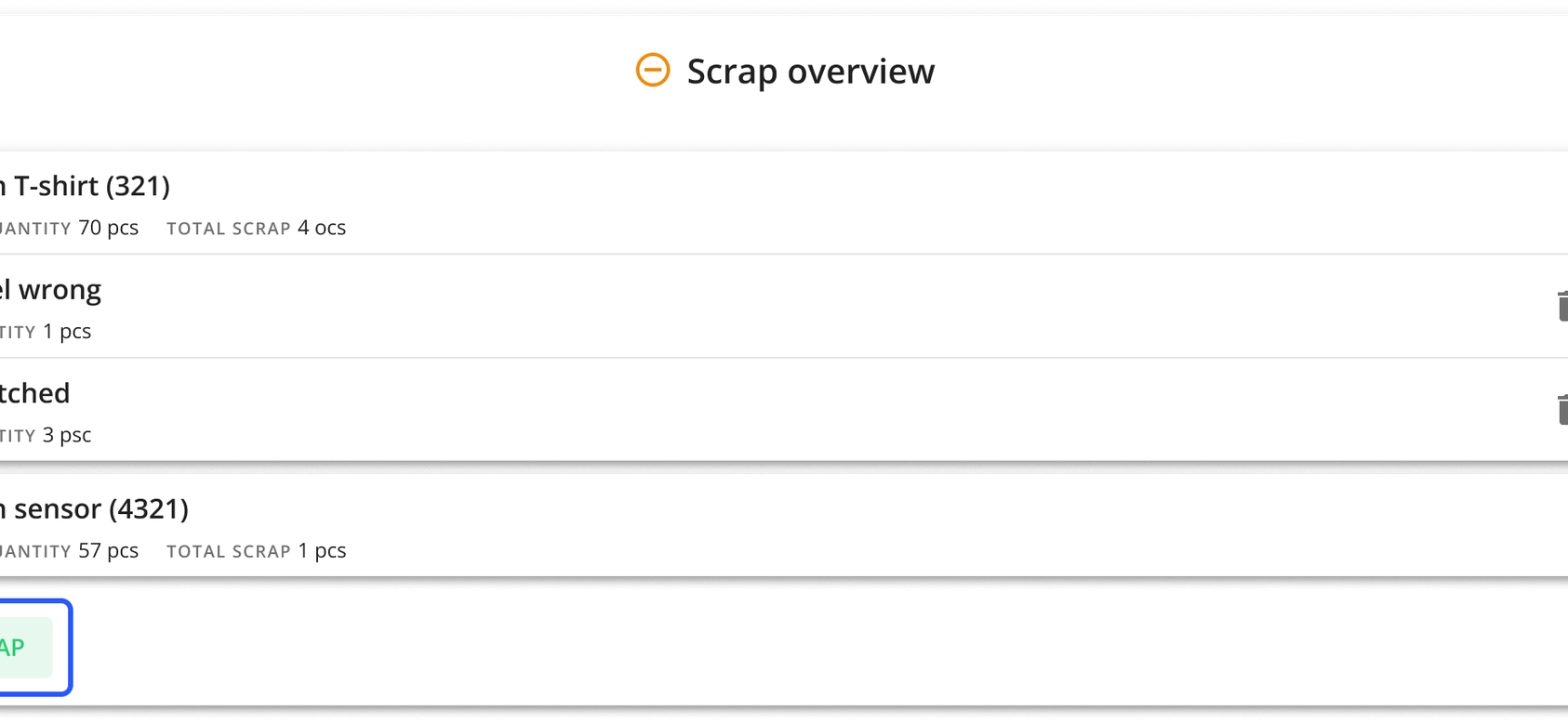
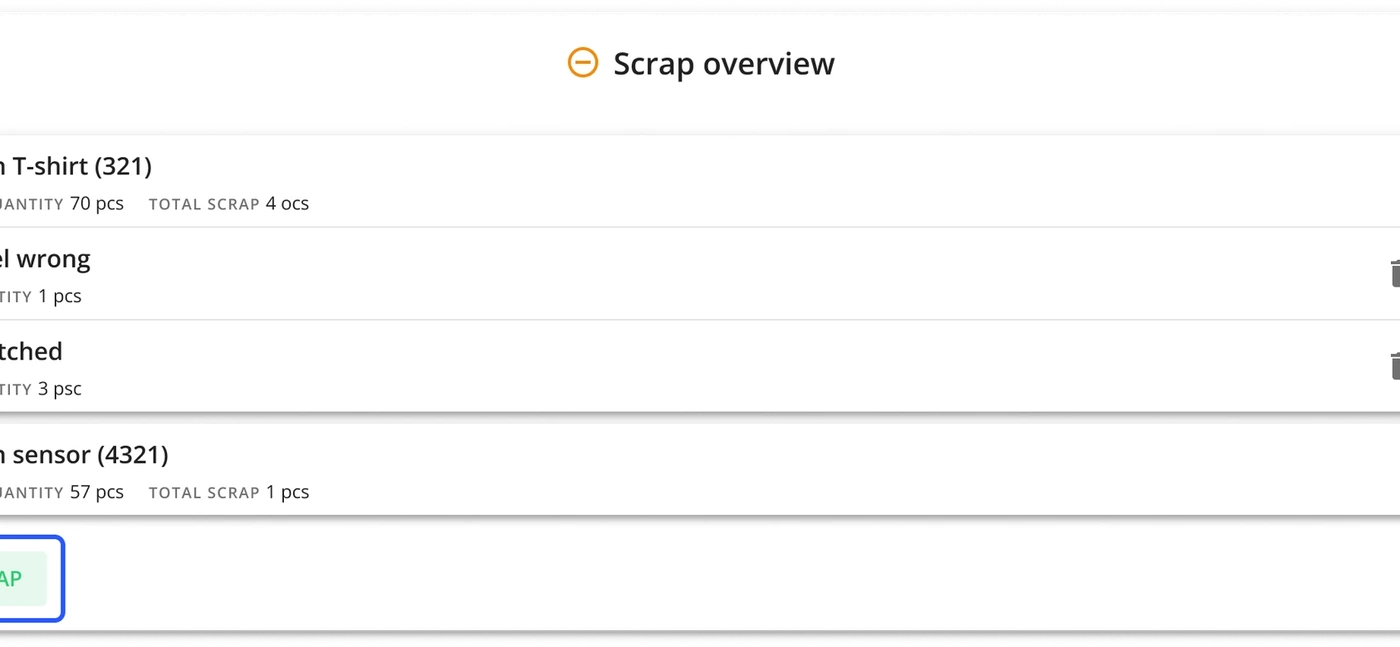
To edit or remove scrap information, open the Scrap modal from the bottom menu bar. Scrap is displayed by product and by using the arrow icon, you can see the details (different reasons for different amounts, etc.) for that product's scrap.

Use the Delete and Edit icon buttons in the overview modal. Scrap can also be removed by setting the quantity to zero.

How to mark scrap when time is not relevant?
If the production process is such that the exact time of scrap is not relevant, then it is easier for the operators to use the Scrap modal.
-
Click on the Scrap modal in the bottom menu.
-
Click on the + Scrap button.
-
Select the scrap group and reason.
-
Select the product that should be marked as scrap from the product field dropdown.
-
Enter scrap quantity.
-
Enter an extra note if required or needed.
-
Click Save to confirm.