
Understand the screen · Guide 8 of 13
Speed widget
How the Shift View speed graph works: unit formats, choosing a format, zooming and dragging, and what the lines and colored areas mean.
Speed widget - the default graph you see in Shift View - supports multiple unit formats, offering greater flexibility in monitoring your production speed.

By default, the widget displays data in the unit format defined in your product's route settings.
Example: If Product A is set to kg/min, the speed will display in kg/min when producing that product, if Product B is set to kg/h, the speed will display in kg/h when producing that product.
You can override the default by selecting your preferred option from the dropdown menu (from the speed widget tab). This selected format will then be applied to all products, ensuring consistency across your Shift View.

In case you switch (from view settings) between primary and alternative units defined in your product route settings, the preferred format is kept active. This allows for quick conversion of units while maintaining your selected speed format.
Please note that the speed graph shows the first cycle after a stop with target speed.
The available format options are:
- units/hour
- units/min
- units/sec
- sec/unit
- sec/signal
where the unit is the unit set in the product route settings.
By zooming in and out (using mouse scroll on the widget or the scrollbar on the right side) you can see the data covering different timeframes - from 10 minutes to the whole shift. You can move the chart by dragging it right or left.
When moving around on the graph, you can see the relevant area/minute brought out on the hour lines as well:

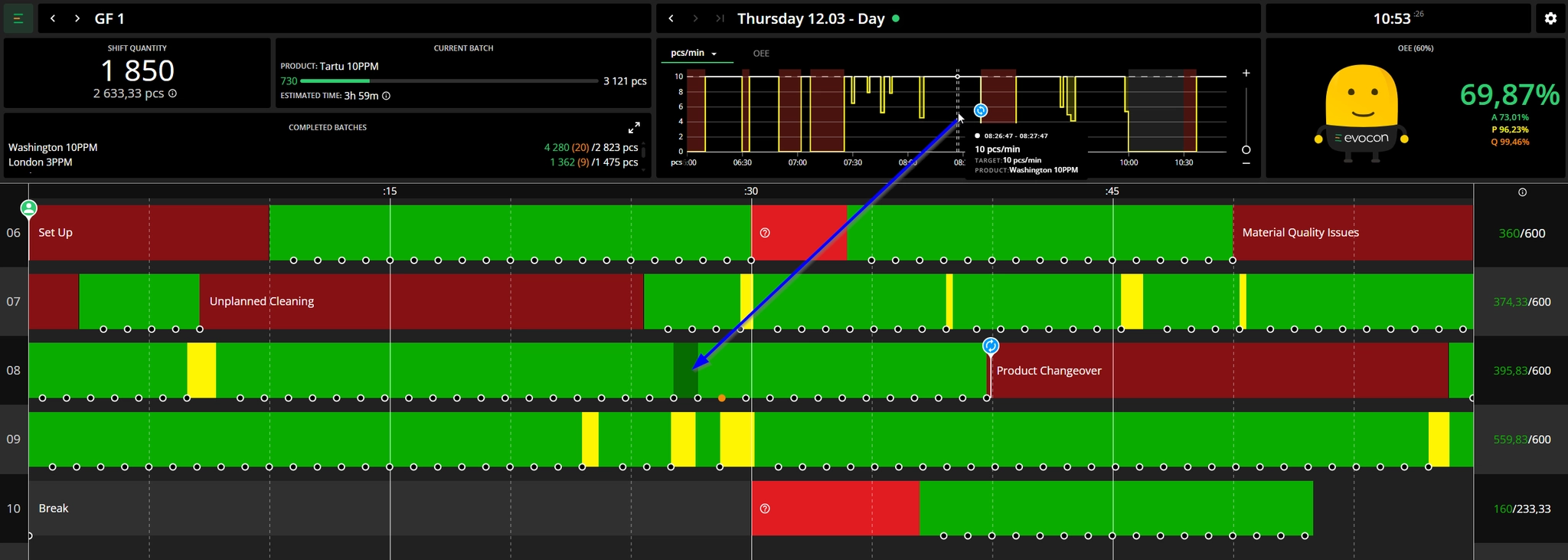
Elements on the graph
- Dotted white line - indicates the target quantity, which is derived from the product settings that were active for the specific station.
- Dark red areas - unplanned and uncommented production stops are displayed with the same colour. Planned stops are not displayed by any colour (gaps).
- Yellow/white line - speed line, showing the produced quantity per minute. It is yellow when the qty per minute is below the ideal production speed (in product settings) and white when it is over the ideal production speed.
- Please note that the speed of the first signal after a production stop is always 100%. So this might create "peaks" in the widget.
- Product changeovers are marked with the same blue icon as they are on hour lines.