
Checklists and messages · Guide 2 of 4
Checklists authentication
How to require operators to enter a personal passcode before filling in a checklist, and how to generate, regenerate and delete passcodes.
On this page
Enabling Checklists authentication
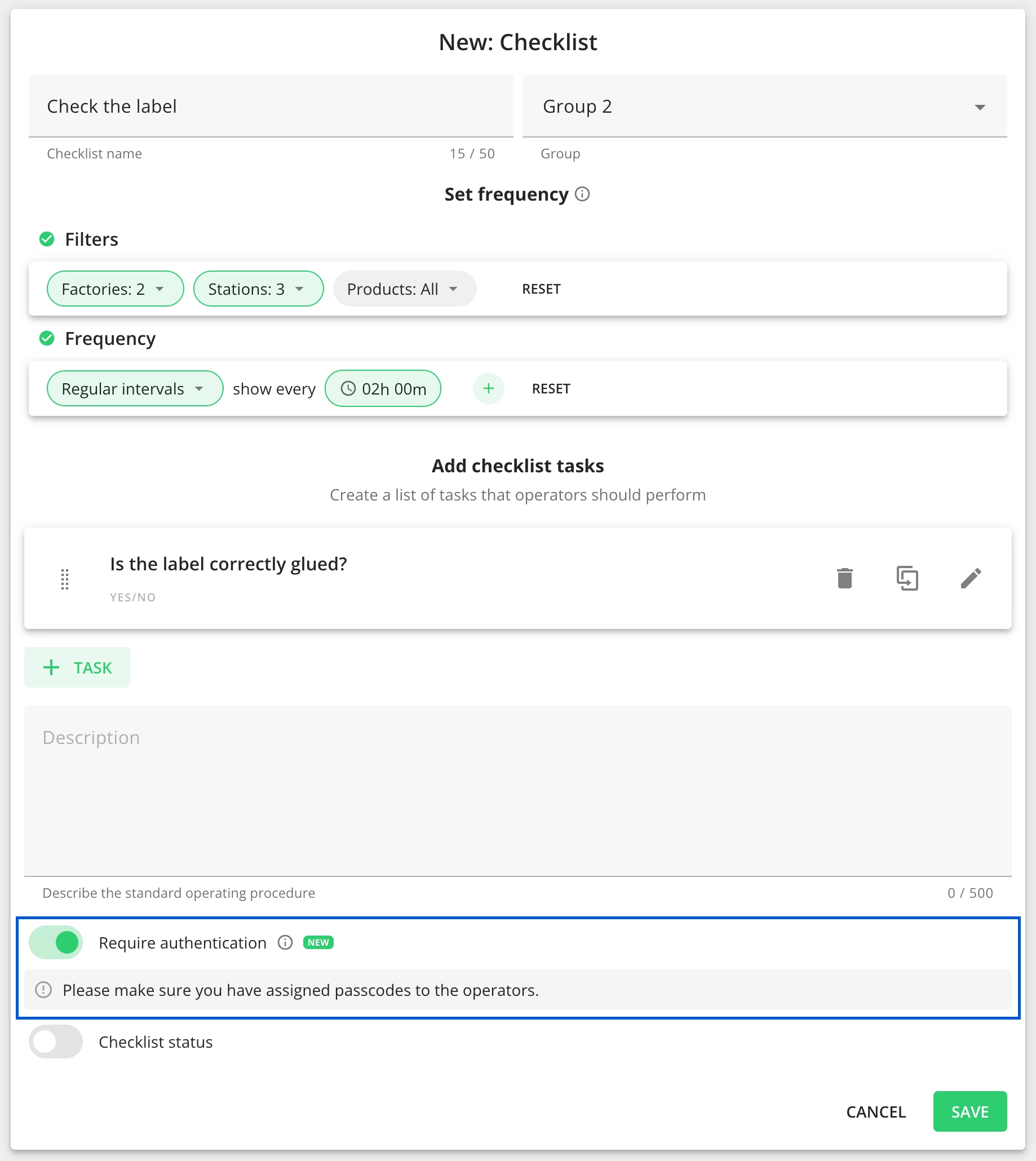
- Go to Settings, open an existing checklist, or create a new one.
- At the bottom of the modal, find a toggle labeled "Require authentication."
- Turn on the "Require authentication" toggle and click "Save."
If you enable Checklist Authentication in the Settings, a passcode prompt will appear for operators in the Shift View. To access the checklist, operators must select their names and input their passcodes.
To disable the authentication, switch off the "Require authentication" toggle and click "Save." When the "Require authentication" toggle is switched off, and the checklist is saved, the new checklists appearing in Shift View will no longer require authentication.
Generating passcodes for operators
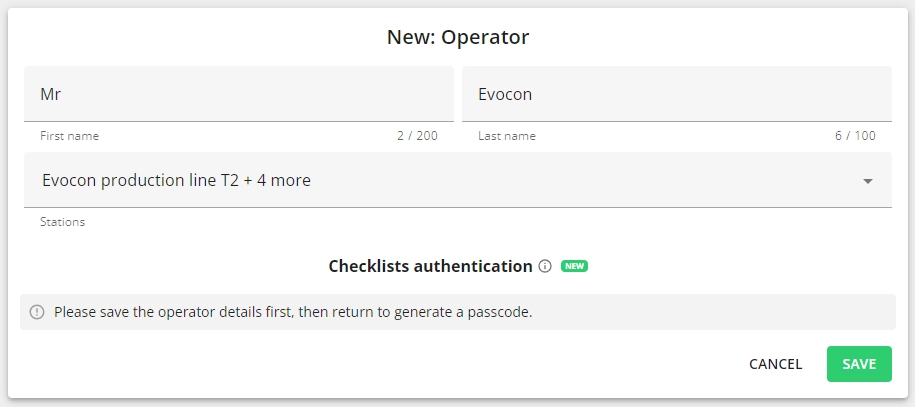
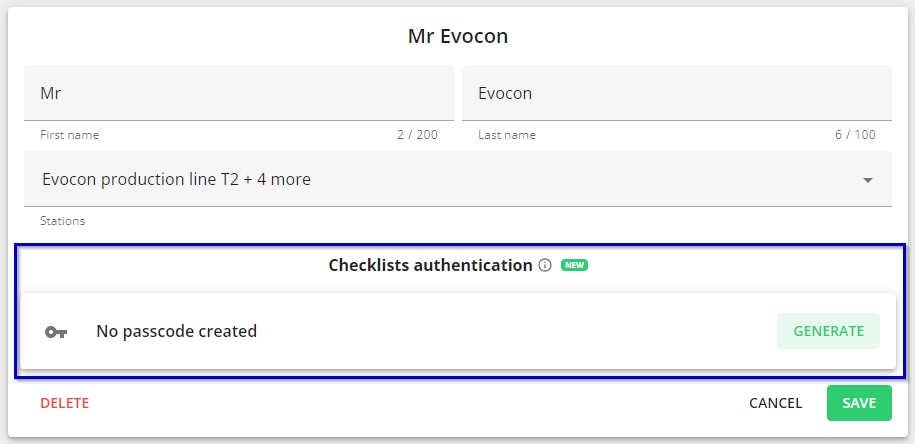
If the operator is already saved in the system, follow these steps to add a passcode:
-
Locate the operator in question (Settings → Operators) and open operator for editing.
-
Look for the "Checklists authentication" section.
-
Click on the "Generate" button.
Regenerating the passcode
There may be instances when the operator requires a new code, such as when the previous one has been forgotten. In such cases, a new code can be obtained by regenerating it.
-
Locate the operator by navigating to Settings → Operators, then open it for editing.
-
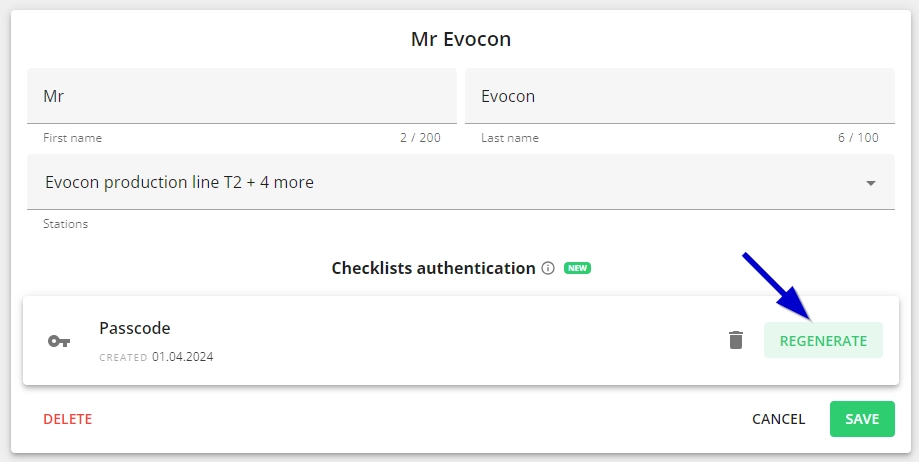
Click on the "Regenerate" button.
-
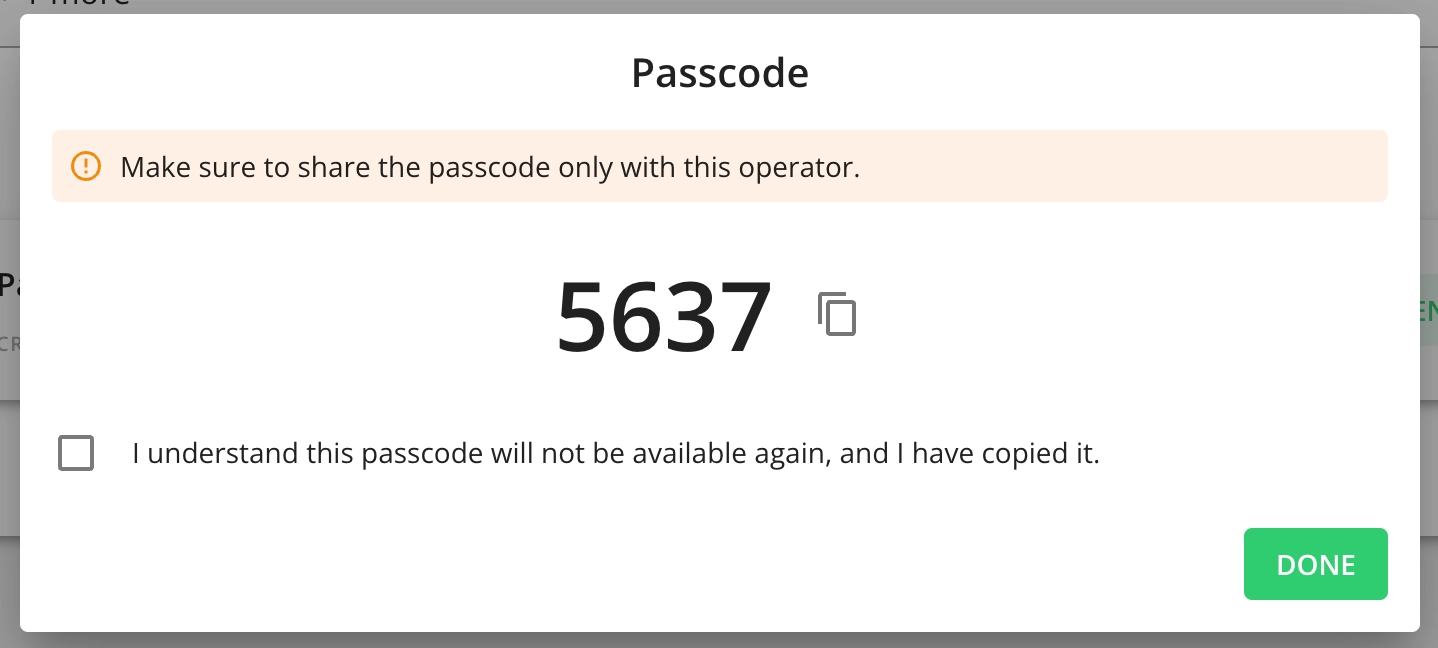
Once passcode is regenerated, the passcode can be copied and forwarded to the operator.
Deleting the passcode
To revoke an operator's access to passcode-protected checklists, follow these steps:
-
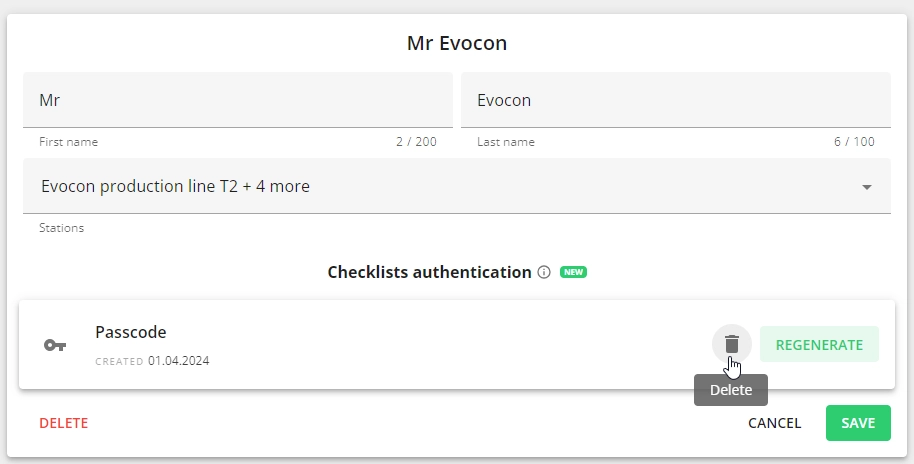
Find the "DELETE" icon in the passcode section and click it, then click "Save".
-
Once the passcode is deleted, the operator will no longer be able to access any checklists requiring authentication.
Shift View – Checklists that require authentication
-
Operators need to select their names from the operator dropdown and click "Next".

-
Next, operators must input the passcode and click "Ok".

-
If the entered passcode is correct, then the operator can start filling in the checklist.

User rights
Company administrators and Factory administrator – Their name will be associated with the checklist only if the checklist requires authentication. Passcode is not asked from this user type.