Reports and analysis · Guide 16 of 28
Using the "Split by" feature
How to use "Split by" in Evocon reports to add a third dimension to charts, and its current limitations.
This guide will walk you through using the "Split by" feature in Evocon reports. This tool allows you to add a third dimension to your data visualizations, offering more granular analysis and deeper comparative insights.
How to use "Split by"
-
Navigate to your desired report
-
Set filters and X-axis
- Configure your report as usual by selecting date ranges and applying any relevant filters (e.g., for specific production lines, machines, or products).
- Choose the primary dimension you want to display along the X-axis of your chart (e.g., Weeks).
-
Apply "Split by" dimension
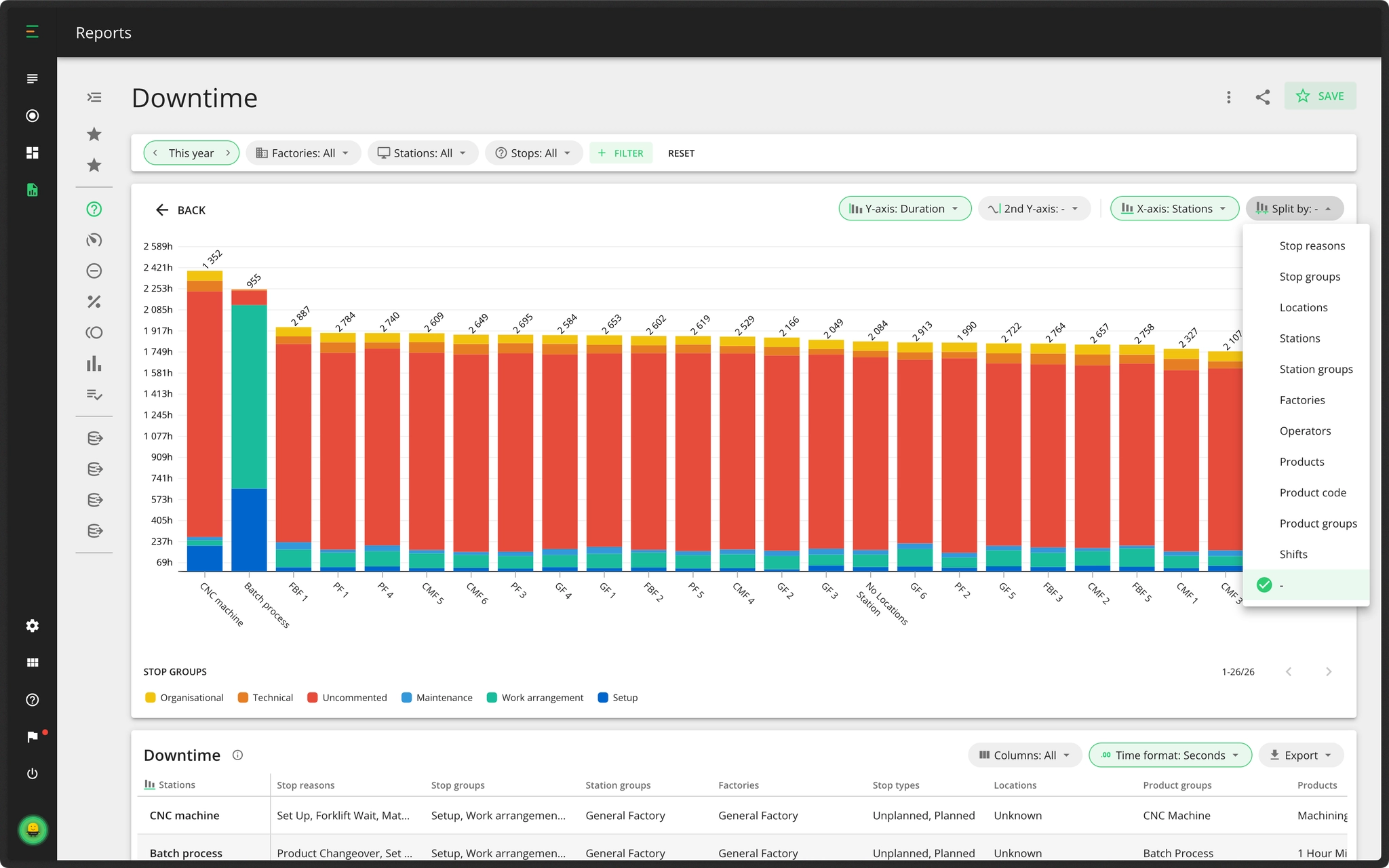
- Click on the "Split by" dropdown. You'll see a list of available dimensions you can use to further break down your data (e.g., Machines, Operators, Shifts, Products, Tags).

-
Viewing the "Split by" Chart
- Once you select a "Split by" dimension, the chart will automatically update.
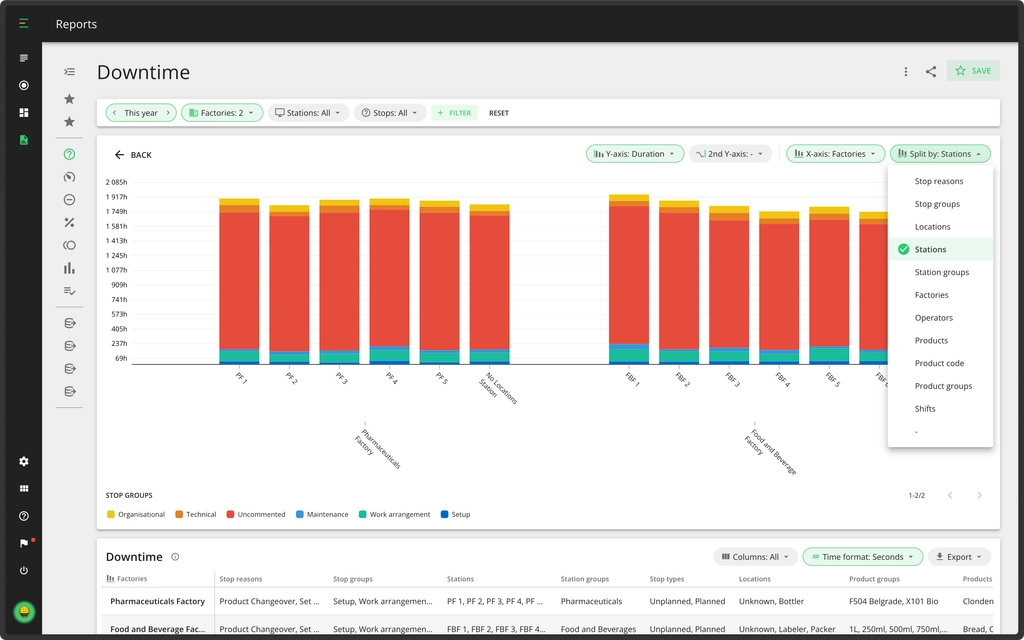
- Each category on your X-axis will now be subdivided (or "split") by the categories of the dimension you selected in the "Split by" dropdown.
Important considerations & current limitations
-
Chart structure: You'll see grouped bar charts (or similar visualizations depending on the report). Each main X-axis point will now consist of a cluster of bars, where each bar in that cluster represents a category from your "Split by" dimension.
-
Hover-over details: You can hover your mouse over the entire group or an individual stack within the group to see its detailed values.

-
Drill-downs: Drilling down can be done only on the entire group.
-
Stacking: For reports that use stacking, this stacking will be preserved within each segment of your "Split by" dimension. In the "Downtime" report, if the main X-axis is anything but stop reasons, then the system will revert to the default actions which is stacking data visually by defined stop groups.
-
Table view: The table will show data only for the main X-axis and not show data based on "Split by" grouping.
-
Resetting: Clicking the "RESET" button in the main filter bar will revert all filters to default and will also clear/disable the "Split by" selection.
-
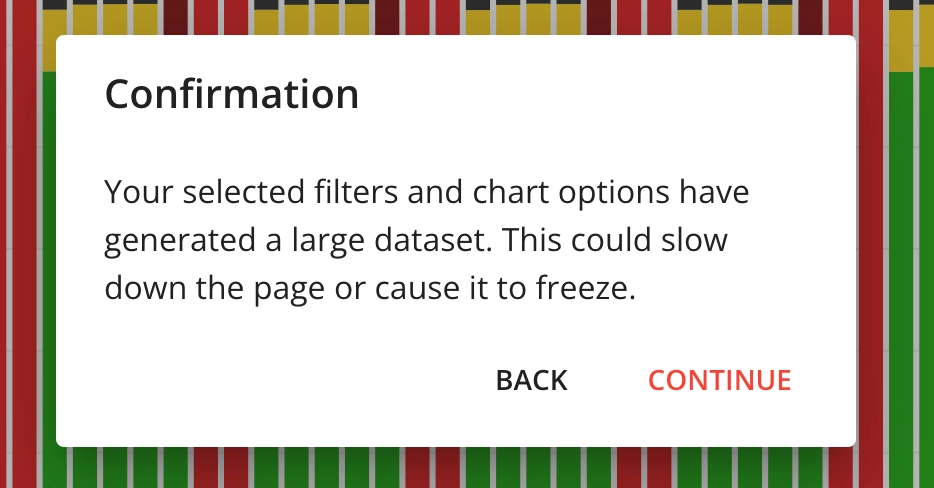
Handling large datasets: The system does not currently restrict the number of categories you can select in a "Split by" dimension. But if your filters and Split by selection result in a very large dataset, the system will prompt you to proceed with caution.