
API and integrations · Guide 5 of 8
Evocon API - Connecting OEE and Losses production data to Excel
How Evocon report API URLs are built and how to load OEE and Losses data into Excel with Power Query and Basic Authentication.
On this page
General information
- Base Evocon API URL is as follows
https://api.evocon.com/api/reports/
- Report name is defined next. For example
oee_jsonlooks likehttps://api.evocon.com/api/reports/oee_json
- Report parameter(s) and their value(s) are defined next
?is placed between report name and the first parameter&is used between parameters if there are more than one- Examples
https://api.evocon.com/api/reports/oee_json?stationId=1https://api.evocon.com/api/reports/oee_json?stationId=1&stationId=2https://api.evocon.com/api/reports/oee_json?stationId=1&stationId=2&startTime=2025-01-01&endTime=2027-12-31
- Which parameters can (or must) be used is defined by the custom report. Different reports may require or support different parameters based on their purpose.
Available API endpoints for common use cases
- OEE endpoint - This returns time usage and quantity information needed for calculating OEE.
https://api.evocon.com/api/reports/oee_json?stationId=X&startTime=YYYY-MM-DD&endTime=YYYY-MM-DDstartTimeandendTimeare mandatory parameters!- Returned fields
- Losses endpoint - This returns information about the stops and speed losses.
https://api.evocon.com/api/reports/losses_json?stationId=X&startTime=YYYY-MM-DD&endTime=YYYY-MM-DDstartTimeandendTimeare mandatory parameters!
Additional endpoints can be created upon request via support@evocon.com.
When requesting additional endpoints, make sure to add information about which parameters (filters) should be set and which fields the endpoint should return. An example of the table with mock data in Excel will help us give the best response about the possibility, implementation time and cost.
Authentication
Create an API key (instructions here).
The connection to Evocon API uses Basic Authentication. Excel has built-in support for connecting using Basic Authentication. The steps to connect and authenticate are below.
Step by step guide to set up a connection
-
Open a new Excel sheet
-
Optional - Set up dynamic parameters for the query. You can also write them in the API request URL and change them there if needed.
- Start time parameter - Required for most APIs
- Right click on a cell (A1 for example) and choose Define name.
- Write
STARTin the Name field and click OK.
- End time parameter - Required for most APIs
- Right click on a cell (A2 for example) and choose Define name.
- Write
ENDin the Name field and click OK.
- Station id parameter - Optional
- Right click on a cell (A3 for example) and choose Define name.
- Write
STATIONin the Name field and click OK.
- IMPORTANT - When the fields are named, select them, right click, choose Format cells and set the field type to Text. This way, Excel is not changing the format of the date.
- Start time parameter - Required for most APIs
-
On the top ribbon, choose Data > Get Data > From Other Sources > From Web
- Click on the Advanced radio button
- Fill in the endpoint URL (you will have to use the parameters and actual dates at this stage). You can split the parameters up in parts.
- Click OK to load data.
- Click on the Advanced radio button
-
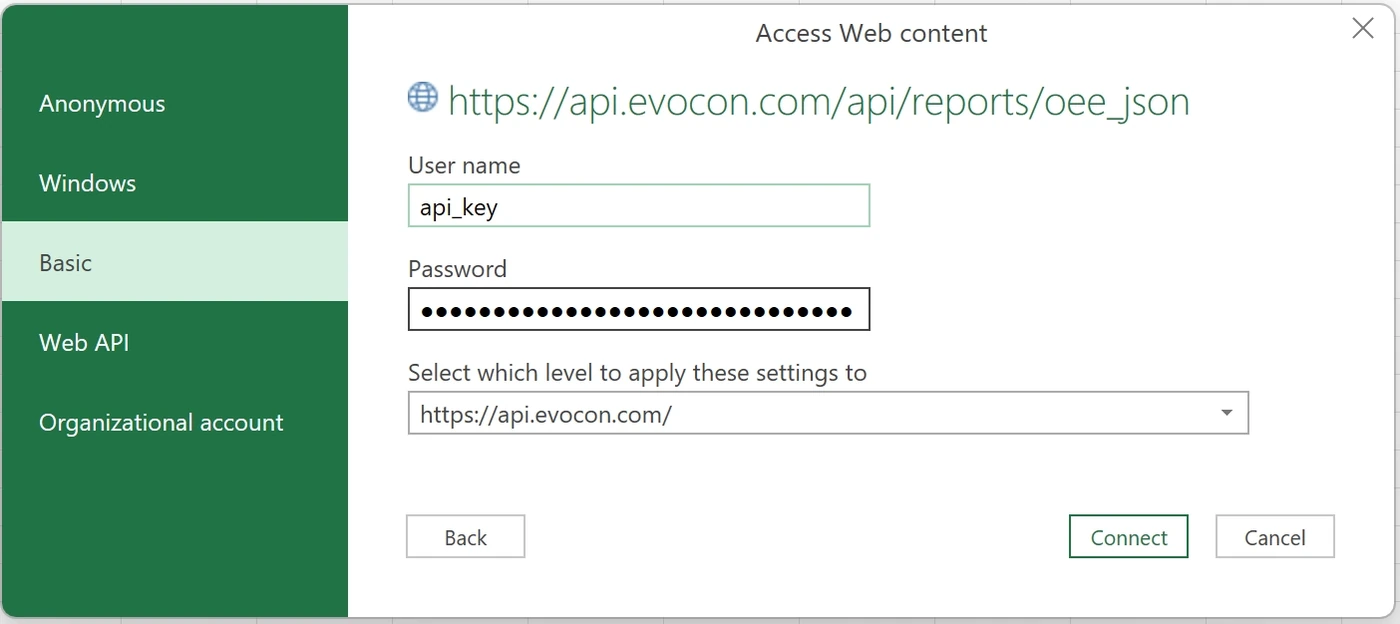
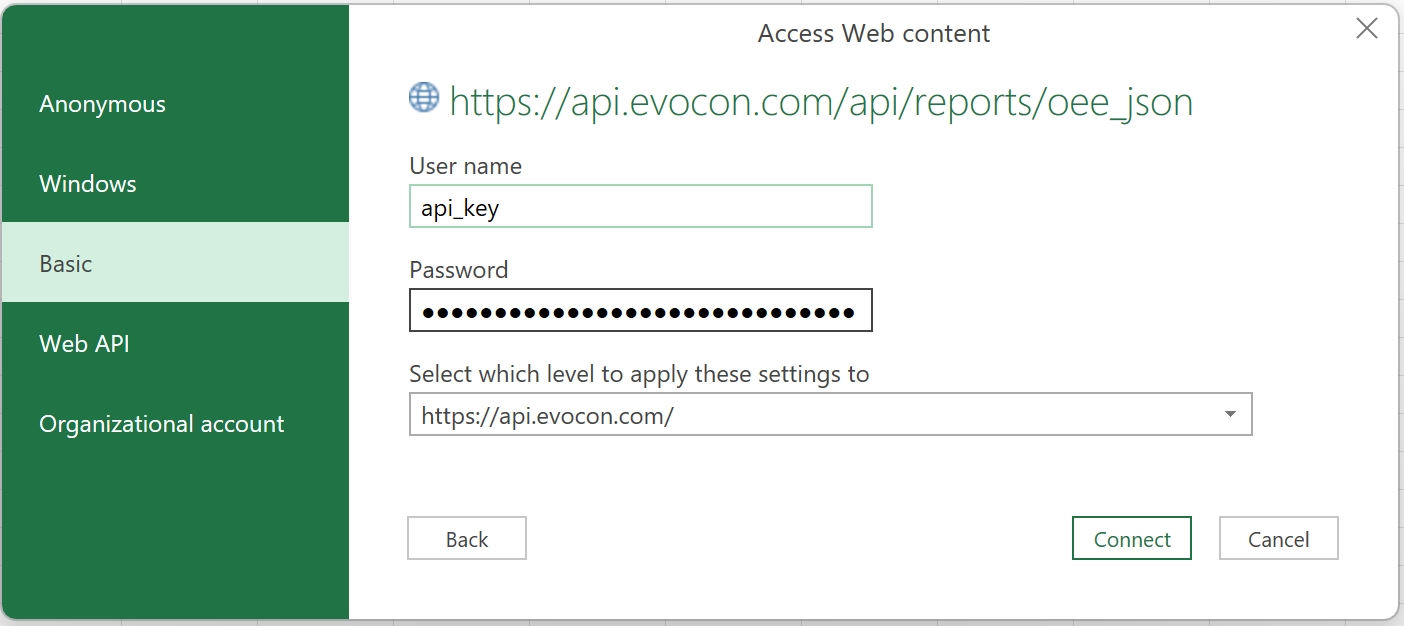
Access Web content window appears (if it does not, click here)
- Insert API key as User name and Secret key as Password.
- Click Connect
-
A Power Query Editor window appears
-
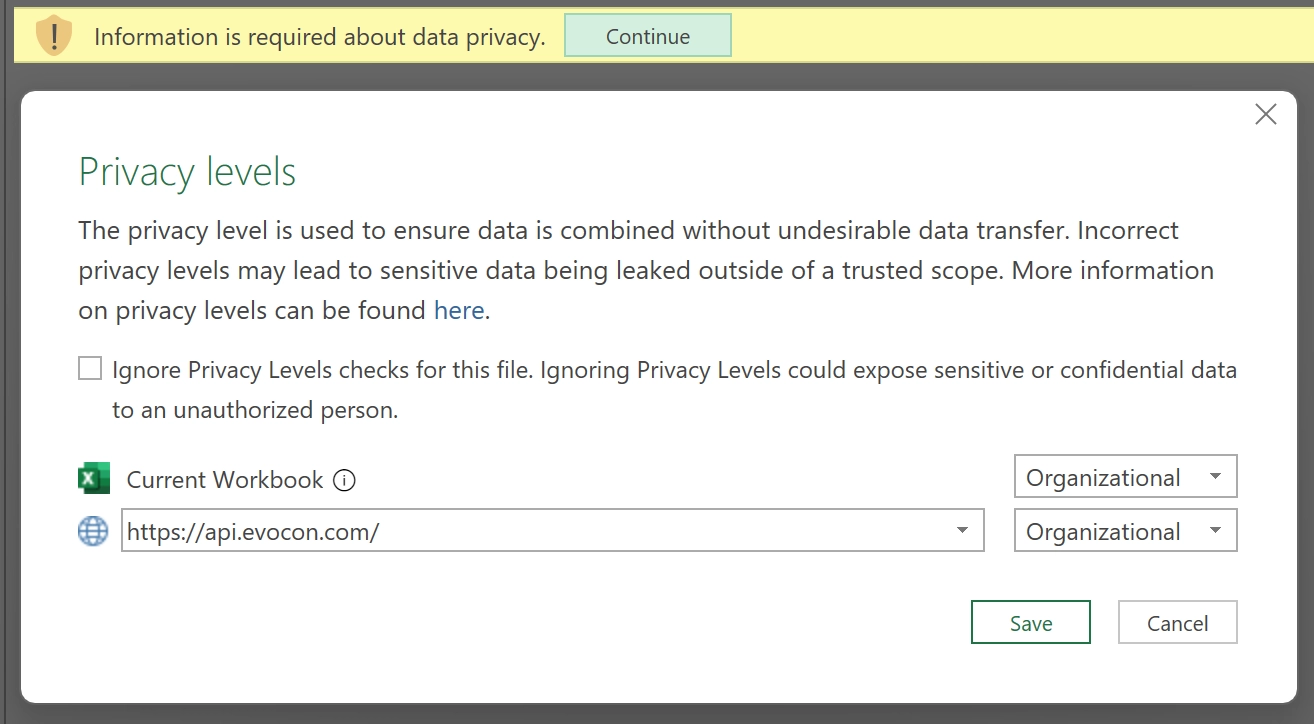
You may see a "data privacy" message here. Choose Organizational for both data sources and click Save. Organizational level limits the visibility of a data source to a trusted group of people. It is isolated from all Public data sources, but is visible to other Organizational data sources. A common example is a Microsoft Word document on an intranet SharePoint site with permissions enabled for a trusted group.
-
Click on List Tools > Transform on the top ribbon and then To Table in the top left corner. Click OK in the next window

-
Click Transform on the top ribbon and then Expand in the far right. Make sure that all fields are checked, delete "Column1" from the Default column name prefix (optional) field and click OK
-
Optional - If you set up parameters in step 2, right click
oee_json?…in the left sidebar and choose Advanced editor-
You will see the Power Query code that makes the request.
let Source = Json.Document(Web.Contents("https://api.evocon.com/api/rep stationId=1&stationId=2&startTime=2023-01-01&endTime=2025- #"Converted to Table" = Table.FromList(Source, Splitter.SplitByNothing(), null, null, ExtraValues.Error), Column1" = Table.ExpandRecordColumn(#"Converted to Table", {"date", "technicalStopTimeSec", "lastModifiedTime", "tota "shift", "operatingTimeSec", "idealQty", "stationGroupId", "slowProduction", "station", "plannedTime", "plannedstops" "unplannedstops", "day", "stationId", "factory", "shiftId" "goodProdction", "goodProduction", "stationGroup", "goodQt "downtime", "month", "weekofyear", "uncommented"}, {"date" "technicalStopTimeSec", "lastModifiedTime", "totalQty", "s "operatingTimeSec", "idealQty", "stationGroupId", "slowPro "station", "plannedTime", "plannedstops", "unplannedstops" "stationId", "factory", "shiftId", "goodProdction", "goodP "stationGroup", "goodQty", "downtime", "month", "weekofyea "uncommented"}) in #"Expanded Column1" -
Here, add the lines between "let" and "Source" for the parameters that you set up in step 2. Do not add lines that are not configured in step 2.
- "start" in the beginning is the parameter used in Power Query.
Name="START"specifies the name defined for a cell.
start=Excel.CurrentWorkbook(){[Name="START"]}[Content]{0} [Column1], end=Excel.CurrentWorkbook(){[Name="END"]} [Content]{0}[Column1], station=Excel.CurrentWorkbook() {[Name="STATION"]}[Content]{0}[Column1], -
Then change the Source line to use the parameters. Below is an example for
oee_jsonconnection. Make sure to change the report name if you use a different endpoint.let start=Excel.CurrentWorkbook(){[Name="START"]}[Content end=Excel.CurrentWorkbook(){[Name="END"]}[Content]{0}[Colu station=Excel.CurrentWorkbook(){[Name="STATION"]}[Content Source = Json.Document(Web.Contents("https://api.evocon.com/api/rep stationId="&station&"&startTime="&start&"&endTime="&end)), to Table" = Table.FromList(Source, Splitter.SplitByNothing null, ExtraValues.Error), #"Expanded Column1" = Table.ExpandRecordColumn(#"Converted to Table", "Column1", "technicalStopTimeSec", "lastModifiedTime", "totalQty", "s "operatingTimeSec", "idealQty", "stationGroupId", "slowPro "station", "plannedTime", "plannedstops", "unplannedstops" "stationId", "factory", "shiftId", "goodProdction", "goodP "stationGroup", "goodQty", "downtime", "month", "weekofyea "uncommented"}, {"date", "technicalStopTimeSec", "lastModi "totalQty", "shift", "operatingTimeSec", "idealQty", "stat "slowProduction", "station", "plannedTime", "plannedstops" "unplannedstops", "day", "stationId", "factory", "shiftId" "goodProdction", "goodProduction", "stationGroup", "goodQt "downtime", "month", "weekofyear", "uncommented"}) in #"Ex Column1"
-
-
You can edit the ordering of the columns, types of the fields and rename the columns as you wish.
-
Finally, click Home on the top ribbon and then Close & Load.
-
-
Now you have data from Evocon API connected to your Excel file. To reload data from the server, click Data on the top ribbon and then Refresh All. Activate the whole table and add a pivot table of pivot graph for further analysis.
Authentication errors
If the authentication window does not appear, it may be because there's already an existing data connection.

Example of an authentication error
To remove it, open Data > Get data > Data Source settings
And if there's anything with evocon.com in the Data sources in current workbook or Global permissions tabs, click on these lines and then click Edit Permissions….
Click Edit again

Choose Basic and insert user name and password that were provided.

After this step, try to get data from web again and Excel or Power BI should ask for the credentials.
Choosing which fields to show
We may add new fields to the report data from time to time. These will not change the way the report is calculated or grouped, but can include additional data about existing rows.
Click on the Data tab and Queries & Connections to open the sidebar.
Right-click on the query that you wish to edit and choose Edit.

Click Refresh Preview to load new data with latest available fields.
