Reports and analysis · Guide 2 of 28
Overview of Reports in Evocon
Overview of the Evocon Reports module: saved, standard and custom reports, downloadable data files, and general features such as filters, chart axis options, drill-down and toggling chart elements.
On this page
Now that you have started monitoring your machines in real-time and have access to the collected production data, it's time to make yourself familiar with Evocon's Reports feature. Evocon provides a handful of standard reports to help you get a handle on what's happening on your shop floor and in production generally, day in and day out. In addition to that, we have made available downloadable data files and based on your specific needs, also custom reports where possible.
Report types
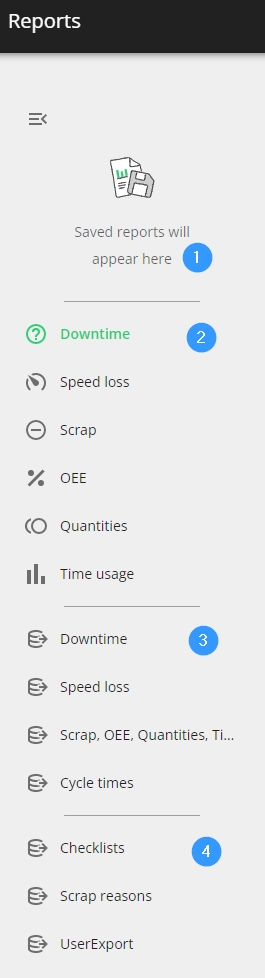
All reports are shown in the reports menu on the left side, different types are separated by horizontal lines.
- Also, you can close the menu from the icon on top.
Saved reports
You can save the reports you have created to be used later, these are called Saved reports and they appear in the top of the reports list (marked with number 1 in the report types image). This way you can have fast and easy access to the specific reports you need. Please find more information here.

Standard reports
You'll find six standard reports (marked with number 2 in the report types image) which are visible and usable for all users that have access to Evocon Reports module.
- In case the Checklist feature is in use, there are 7 standard reports. Please find more information on the feature here.

Downtime
The Downtime report provides a comprehensive overview of collected data on all the production stops so you can easily identify the main reasons for availability loss.
Speed loss
The Speed loss report gives an overview of speed loss reasons added in Shift View, similarly to the Downtime report. This enables you to identify the main reasons for speed loss.
Scrap
The Scrap report gives an overview of the quality side, more precisely the scrap quantities and reasons.
OEE
The OEE report shows you the efficiency of your production equipment and factory during a certain time period, what has been the availability of your machines, how performance has changed, and what is the quality of your production.
Quantities
The Quantities report tracks the quantities you have produced at any given time, and also shows you what proportion of that was lost due to quality problems.
Time Usage
The Time Usage report gives insight into how planned production time is divided between good production, slow production, and production downtime (planned and unplanned production stops and stops that were left uncommented).
Downloadable data files
These files (marked with number 3 in the report types image) are available to provide the data that the Reports are built from. They can be used to compile any information the users need and did not find in a suitable format in Reports. There are 4 files available and they can be found listed below the standard reports.

Custom reports
We do our best to cover most of your needs with our standard reports, the possibility to have saved reports, and providing downloadable data files, but we acknowledge that sometimes you just want to analyze data from different angles. We have put together some custom reports that can be enabled and then downloaded from the reports list (marked with number 4 in the report types image), but we can also help you get the data you need via API.
If you ever find yourself in a position where the reports by Evocon are not enough and you need assistance with building a suitable report, contact us and tell us what you need.
General standard reports features
Filters
Reports allow you to filter data so you can narrow down your focus and focus on a specific dataset (e.g station groups, factories, product groups). Read more about filtering here.
There are some filters that are common for all standard reports:

For reasons reports (stops, speed losses, scrap) there is by default also the reason filter:

It is possible to add filters from the "+FILTER" button - the available options differ per report:

All filtering can be reset from the "RESET" button:

Chart display options for X- and Y-axis
It is possible to display data based on different x-axis factors (for example shifts or stations). It is also possible to choose how the data is aggregated on the charts based on the set time period. For some reports, it is also possible to change the display options for Y-axis. Please find more information here.

Data drill-down
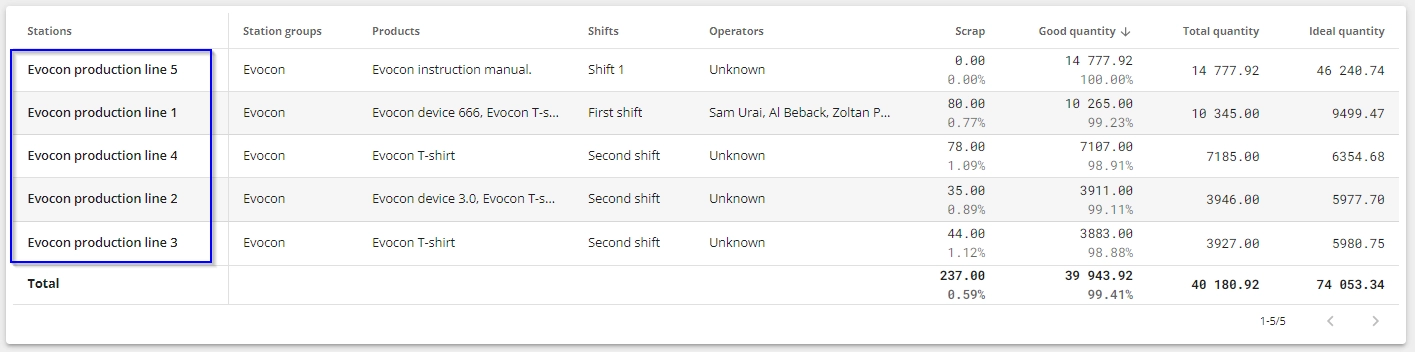
In the data table below the chart, it is possible to drill down in the data by clicking on the element in the first column (separated with a vertical line from other columns):
After drilling down, you can get back to the previous state by clicking on the "BACK" button (on the chart area):
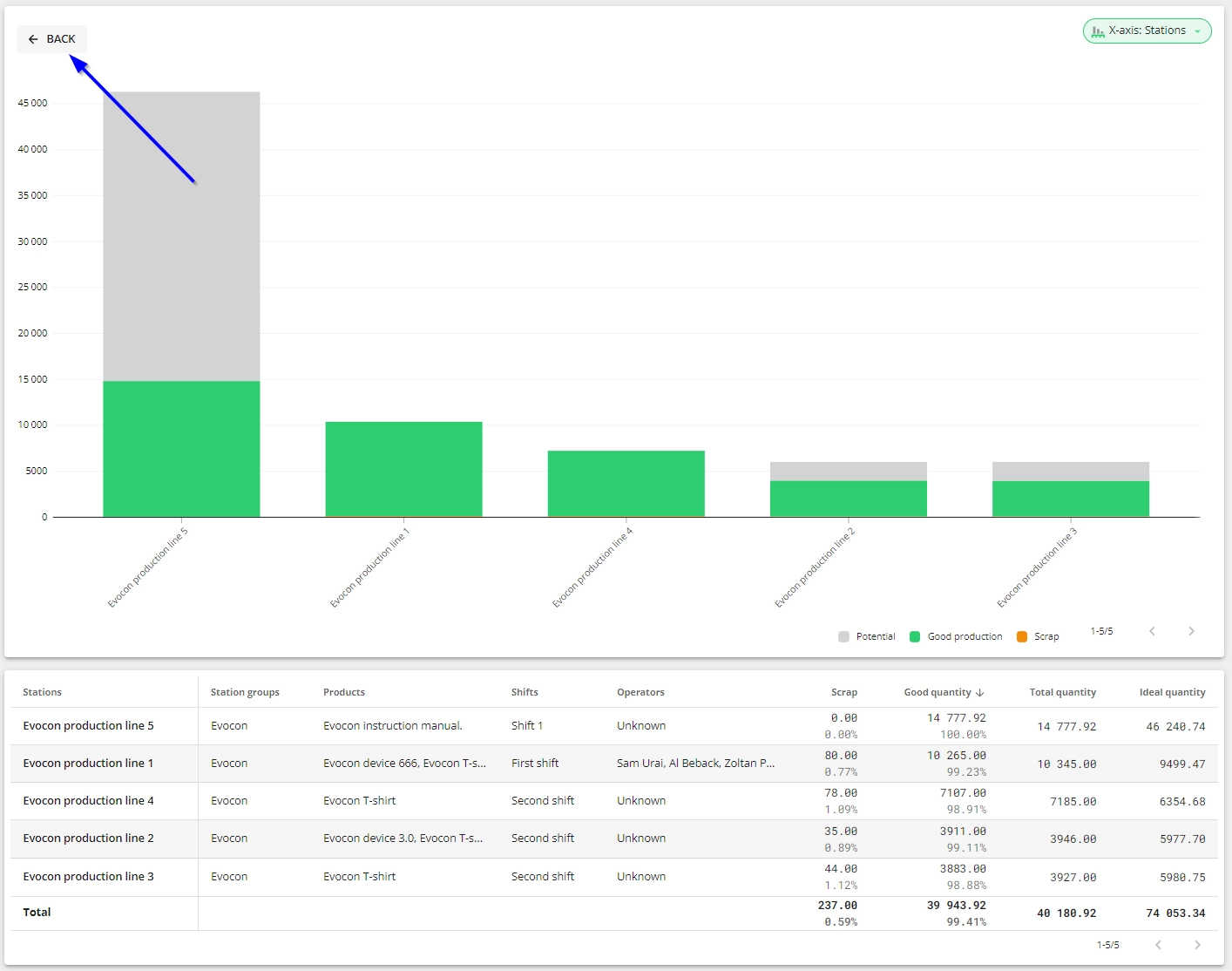
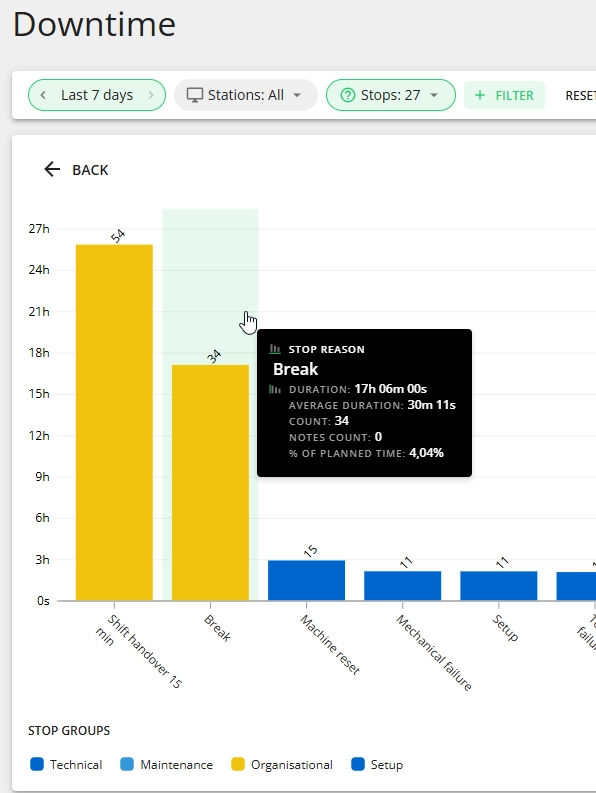
It is also possible to use the drill-down function by clicking on the bar area on the chart (not directly on the bar itself) - it acts the same as clicking on the row in the data table:
Toggling elements on and off
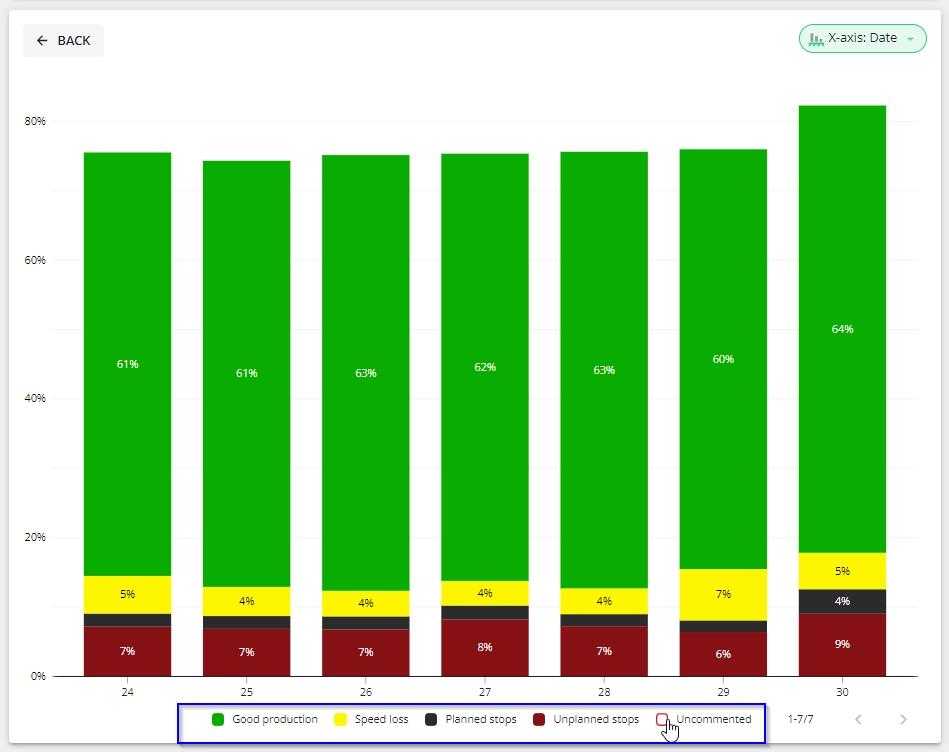
The functionality to turn chart elements on and off in order to visualize only specific datasets is available in all the standard reports. Just click on the element in the chart legend to exclude/include it. The elements might be groups, stop types, quantity types, etc.