
Hardware and connectivity · Guide 11 of 15
Hardware - Evocon IIoT device 3 - Command line interface (CLI)
How to connect a PC to the Evocon IIoT device 3 over micro-USB, log in to its command line interface and use the WiFi, input and general configuration commands.
On this page
Required steps to connect via CLIs
The device cover must be opened and connected to a PC using a micro-USB to USB cable to access the CLI (command-line interface).
- Unplug the power, sensor and network cable from the device.
- Remove the bottom cover using a 2,0 size hexagon screwdriver.
- Connect the Evocon device to a PC using a micro-USB cable.
-
Open “Device manager”
- Open the “Run” dialog box by pressing and holding the Windows key, then press the R key (“Run”)
- Type
devmgmt.msc - Click OK (or press Enter)
-
You should see a "Silicon Labs CP210x USB to UART Bridge (COMx)" item under Ports.
-
If this item does not appear, it may be that the USB cable is a "charge-only” cable and does not support the data connection. Please try a different cable.
-
If this item appears but is not shown as in the picture below, you may need to install drivers from here:
-
Once you have the driver installed, you should see this:
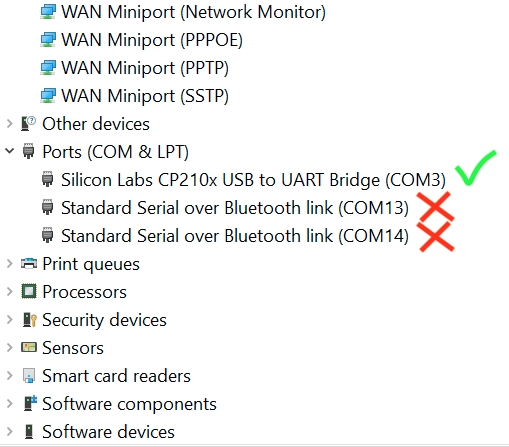
Ports view of the Device manager with Evocon device connected. COM number may be different depending on the PC.
-
Connect to CLI
-
Open a terminal program ( For example, Termite https://www.compuphase.com/software_termite.htm, there is a non-install option https://www.compuphase.com/software/termite-3.4.zip)
-
Click "Settings" in the top right corner and configure it as in the example below.
The COM Port number can be different; refer to the previous section of this guide.
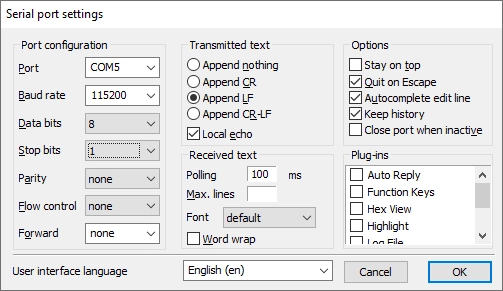
-
Click OK and then click "Disconnected - Click to connect" button in the top middle to connect to the device.
-
When you see "COMx..." instead, paste the access token provided by Evocon to the text box at the bottom and press enter. You should see the "CLI enabled" message.
Command line password
You are now connected to the command line interface of the device.
To send other commands, you first need to send the password. Password is unique for each device and will be specified by Evocon.
You can find this password by opening https://app.evocon.com/#/settings/devices as a logged in user.
Find the correct device by serial number (on the side of the device) and click on the serial number in the Devices page to open this device.
Password looks something like this:
180d1062672c0f2564bb33b64d0d70c5f1d74a9c662cd701e711d6d8e42481c8
An automatic timeout disables the interface after 5 minutes or after the restart. Send the password again to log in if the interface has timed out.
The timeout can be removed until the next restart using the "disable_cli_pass" command.
Send configuration commands
Below is a list of commands and their purpose and usage syntax.
Items in [brackets] are optional values required to configure the device. Command without the modifiers shows the current configuration.
Configuring wifi network
-
Connect to CLI using the steps above
-
Make sure you have inserted the CLI password
-
Use
wifi [<ssid>] [<pass>] [--delete]command to add a network- Evocon device 3 has a default wifi address saved into the flash memory. This address can be used if there is no wifi available and the new access point is set up. The SSID of that wifi network is EvoconDevices, and the password can be requested at support@evocon.com
- In addition to the default WiFI, Evocon device 3 can remember 2 additional wifi networks and choose the best one based on the signal strength.
<ssid>WiFi SSID (name)<pass>WiFi Password--deleteDelete custom wifi configurations from the list (usage:wifi --delete). EvoconDevices configuration will stay in the flash memory.- To add a network without a password, use the following command (Requires FW version 0.1.7 or newer):
wifi SSIDofNetworkWithNoPassword --no_password
All commands
General commands
help- Help command displays all commands that can be used in CLI.
log_level [level number]- Log level command displays or sets log level if used with the level number.
- Possible values for level number
- 0 - None
- 1 - Only errors
- 2 - Warnings
- 3 - Informative
- 4 - Debug (most verbose)
mac- Mac command displays the base mac address of the device. Base mac address is used as the identification for the device. Note that wifi and Ethernet interfaces have different MAC addresses.
disable_cli_pass- Disable the CLI session timeout until the device is restarted.
restart- Restarts the device.
shards- Shows information about unsent shards in the memory.
aws- Shows information about the connection to AWS IoT servers.
Input configuration
input [<input_nr>] [<mode>] [<scaler>] [<off_filter_ms>] [<on_filter_ms>]- Input command sets configuration for inputs.
<input_nr>specifies which input is being configured. Possible values 1, 2 and 3.<mode>specifies mode for that input- 0 - Input is disabled.
- 1 - Input is in signal counting mode. Each signal is sent to the server as soon as the signal goes from 1 to 0.
- 2 - Input is in scaling mode. In scaling mode, signals are sent to the server after the scaler value is reached.
- If the scaler value is 1, modes 1 and 2 are identical.
- 3 - Input is in minute mode. Input counts signals for a minute and then sends the total quantity once per minute.
- Timestamps are sent only if at least 1 signal is detected during a minute.
- Scaler is not used in minute mode.
- MODE_ANALOG = 4 - Currently in development
- MODE_ANALOG_TRIGGER = 5 - Currently In development
- 6 - Timer mode for measuring how long a signal is on (machine is working). Scaler should be set to 60 to send packets every minute. Filters should be set to at least 1000ms.
<scaler>specifies how many signals the device should wait in mode 2 before sending data to the server.<off_filer_ms>specifies how long the next signals are ignored after one signal is registered from input in milliseconds.- Signals detected during the ignoring period do not reset or extend the ignore period.
- Input light is YELLOW for the duration of the ignoring period.
- Example: If the off_filter_ms value is 5000 (5 seconds), and a signal goes LOW at 10:00:00, no new signals are registered between 10:00:00 and 10:00:05. It means that if the signal goes HIGH at 10:00:03, it is ignored.
<on_filer_ms>specifies how long a signal must be ON for it to be counted in milliseconds.- Input light is RED if the signal is detected, but the filter value is not reached.
- Input light turns GREEN if the filter value is reached.
- Example: If the on_filter_ms value is 5000 (5 seconds), signals that are shorter than 5 seconds are ignored. If the signal goes HIGH at 10:00:00 and then goes LOW at 10:00:02, it is ignored. If the signal goes HIGH at 10:00:00 and LOW at 10:00:08, it is counted.
conf [--delete]- Configuration command displays the current configuration.
- When used with
--deleteoption, resets configuration to default.
Network connectivity
wifi_scan- Wifi scan command looks for different wifi networks in the area and displays their names with RSSI.
- Here is a simplified look at the RSSI values:
- 0...-30 dBm - Amazing signal strength. The access point must be close by.
- -31...-67 dBm - Good signal strength.
- -68...-79 dBm - Okay. The device should work, but if there are issues, changes to the location of the device might be required.
- -80...-90 - Not good. It would be best if you moved the antenna closer to the access point.
- -90... - Unusable.