
Dashboards and Factory Overview · Guide 2 of 14
Factory Overview: Live
What the Live view of Factory Overview shows for operating, stopped, connection-lost and on standby stations.
On this page
The Live view gives you the current status of all selected stations - this is a good way to keep an eye on some stations on the go, as the colors and the most important information provides a great overview.
Please see how to filter stations for this view here and keep in mind that the performance of the view might be affected if you choose to view more than 20 stations at a time. All station name titles act like clickable buttons that take you to the Shift View of that station (opened in a new tab).
Overview of Live view
The first "card" provides the synopsis of Live view - meaning it lists the number of:
- Stations – total stations selected.
- Operating – indicating stations that currently have active production.
- Stopped – these are the stations that have a running uncommented or unplanned production stop or are on standby (do not have an active shift or have a running planned production stop).

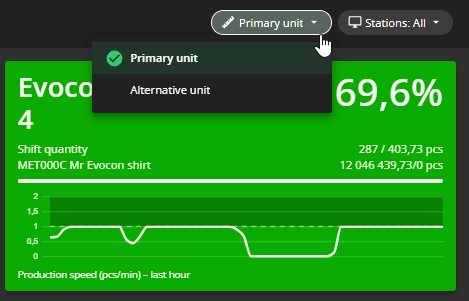
All quantities are shown in primary unit by default. In case you have an alternative unit set, you can switch between units by using the dropdown in the top right corner.
Operating stations
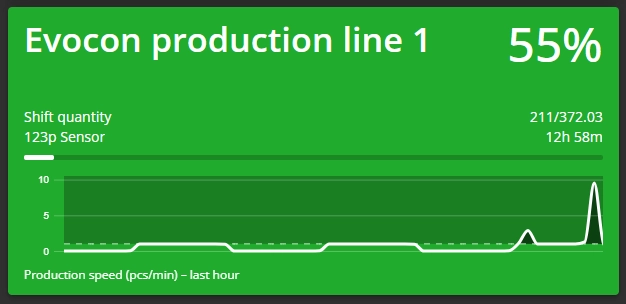
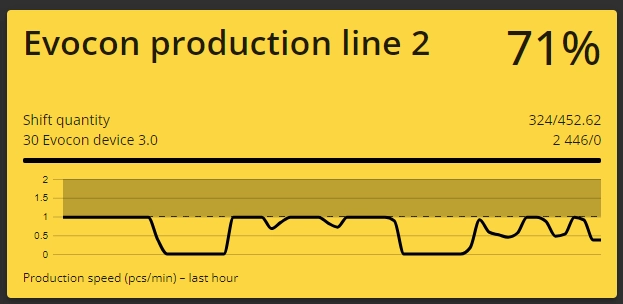
For each operating station (displayed in green and yellow) the following information is shown:
- Station name (i.e. "Evocon production line 1")
- OEE % of the current shift
- Shift quantity for the running shift (showing total shift quantity / ideal shift quantity)
- Current product (or order) and good quantity produced vs target (set at changeover)
- In case you have set the target at changeover, the "good quantity produced / target" value alternates with the estimated production time.
- If the target has already been reached, it shows "Target reached" instead of the estimated time.
- Production speed (unit/min) chart for the last hour – the dark area on the graph indicates production speed over the set cycle time. If production is constantly over the set cycle time, it should be adjusted in Settings accordingly (more information here).
- Status – either green (good production – within set cycle time) or yellow (slow production – below set cycle time).
Stopped stations
For each stopped station (displayed in red or dark red) all the same information is shown as for operating stations. In addition, however, information on the current stop is added.


- Stop reason for current production stop – if stop reason is entered, then the card colour is dark red. If not, it is lighter red and the reason is "Uncommented".
- Duration of the running production stop - shown in hours, minutes and seconds.
Connection lost card
In case there is a connection issue with the station, then this is indicated with a special status:

On standby stations
For each on standby station all of the same information applies as to stopped stations. The only difference is the colours which indicate the status of the station.
-
Gray – this colour indicates that the station is currently stopped and the reason is planned. Planner reasons can be either included in or excluded from OEE calculation (set for every stop reason).
- Light grey - included in OEE calculation.
