
Dashboards and Factory Overview · Guide 14 of 14
Checklists Dashboard widget
The two display modes of the Checklists Dashboard widget and how to add and configure the widget.
For a quick overview of checklist compliance across shifts or stations, there are two Dashboard widget options available.
The two display modes are:
- Individual checklists ranks specific checklists or checklist groups by their total count, making it easy to spot which checks are falling behind.
- Timeline shows checklist status stacked by time (shifts, days, or months depending on the selected period).
How to add a new Checklist widget?
-
Click "Add widget".

-
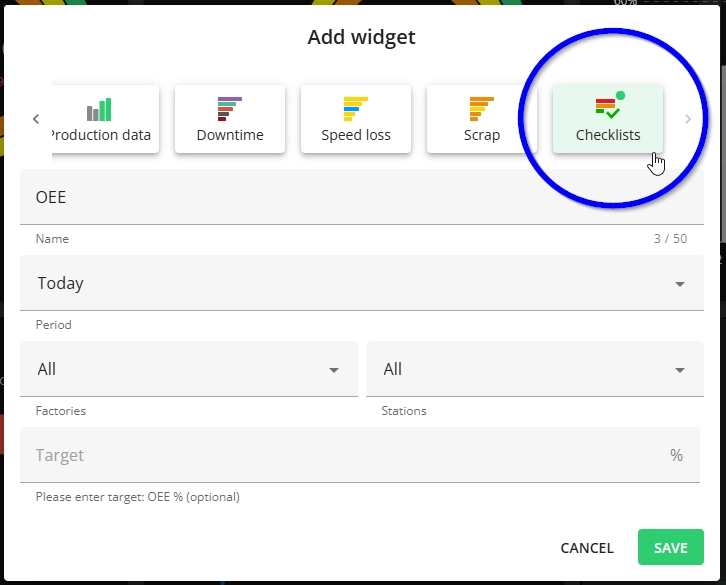
A modal is opened, where you can select the widget type (it is possible to change that in next steps if needed):

-
Select the details for the widget:
- Name - change the default name to a custom one if needed.
- Even if the name is left as the default, it is saved in the currently chosen language and is not translated when the user changes system language.
- Time period to include.
- Factories to include - for multi-factory setup only, select the factories included in the data for this widget.
- Stations to include - it is possible to filter by station group and then select the stations.
- Checklists to include - it is possible to filter by group and also select by checklist.
- Display mode:
- Individual checklists - ranks specific checklists or checklist groups by their total count, making it easy to spot which checks are falling behind.
- For this option you also need to set these:
- View by - select whether to display the result by checklist or group.
- Show top - set how many results are shown (1-10). The default value is 10.
- For this option you also need to set these:
- Timeline - shows checklist status stacked by time (shifts, days, or months depending on the selected period).
- Individual checklists - ranks specific checklists or checklist groups by their total count, making it easy to spot which checks are falling behind.

- Name - change the default name to a custom one if needed.