Process metrics and monitoring · Guide 3 of 4
Cycle Times Explainer
An example-based explanation of ideal and actual cycle times, how Performance is calculated and shown in Shift View, and how to find where Performance exceeds 100%.
On this page
Before we start with definitions and formulas, let's imagine ourselves on a shop floor. Let's picture a production line, where three rather different products are being made:
- Evocon device
- Optical sensor
- And an Evocon T-shirt
That is of course not exactly how it happens in real life. But it will help us understand cycle times in general and how they work in Evocon.
These three rather different products are made interchangeably, and here is one shift that made them all:
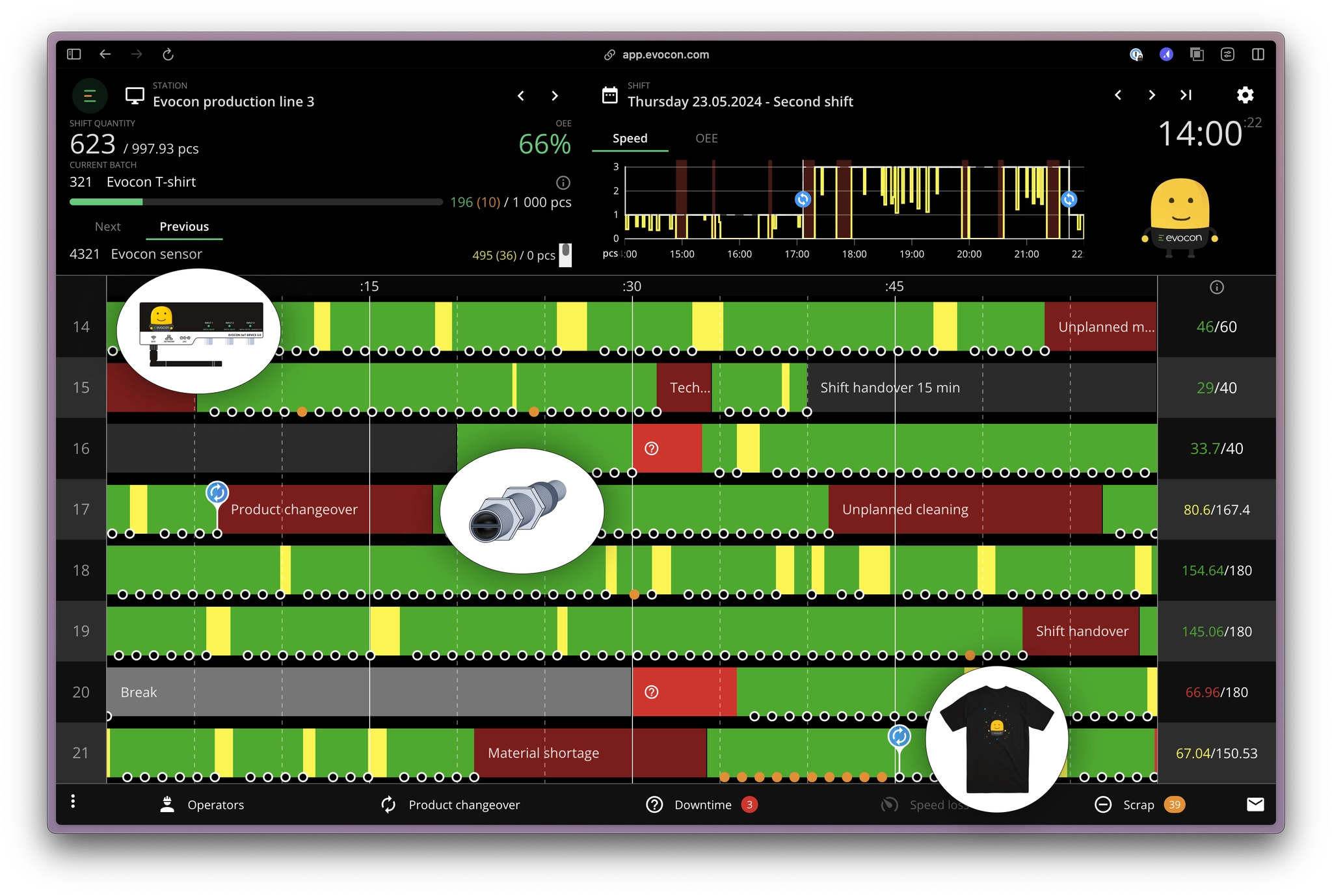
So, from 14:00 the Evocon device was being produced, at 17:06 there was a changeover to optical sensor, and at the end of the shift Mr. Evocon managed to make a batch of T-shirts as well.
Each of these products has its "Ideal cycle time" defined in the Settings. For example, T-shirt has these settings (under Settings → Products):
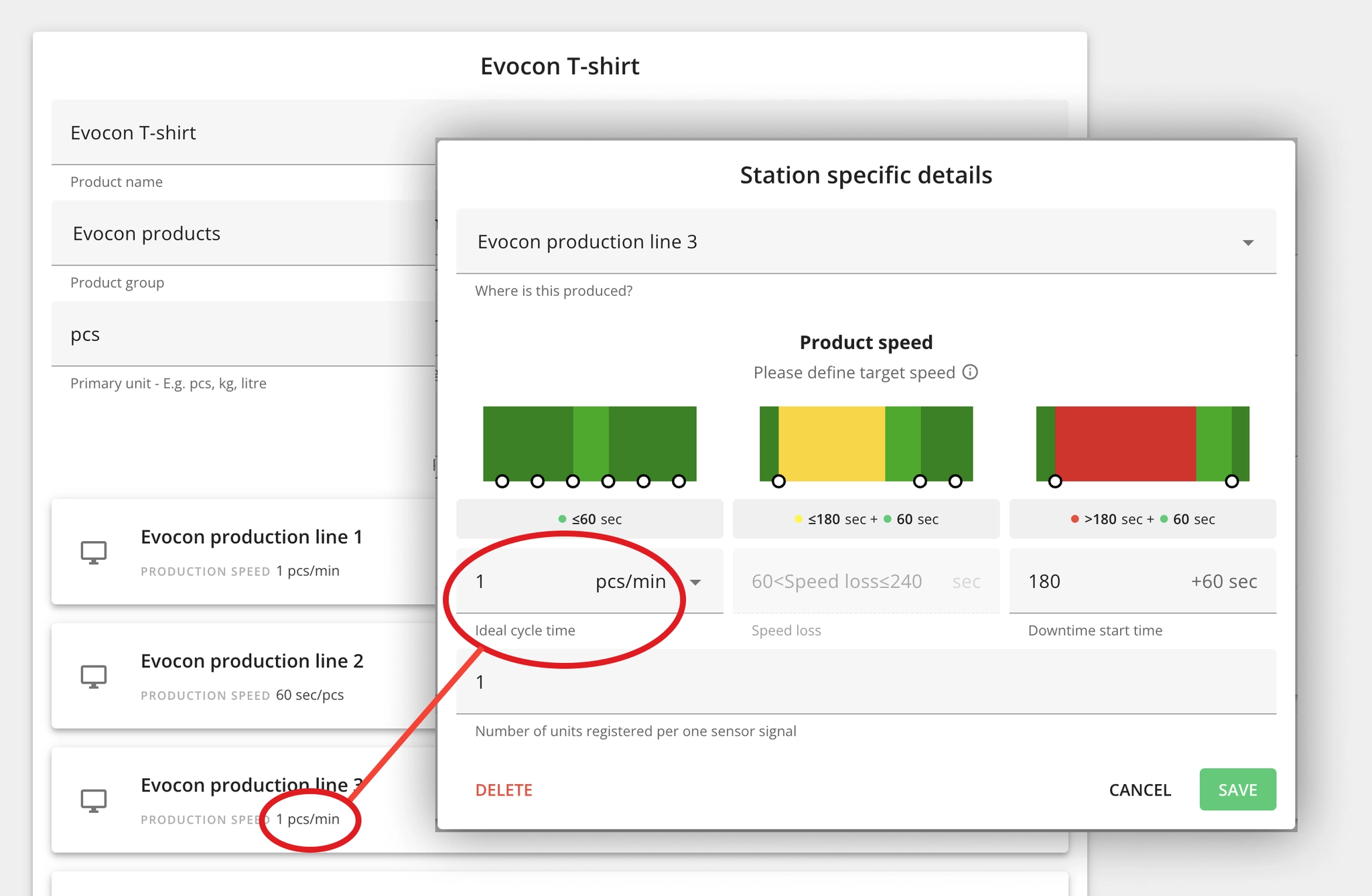
So, we see that the ideal cycle time for T-shirt on this particular production line (line No.3) is 1 piece per minute (on other lines it is set up differently, as you can see).
Cycle time definition
Now, these are the ideal cycle times - the theoretical target, which is not supposed to be achieved 100% in actual reality (according to the correct OEE philosophy). The real cycle times are called the actual cycle times.
How to see actual cycle times on Evocon Shift View?
Let's take a closer look at the end of the shift, where 14 T-shirts were produced, and let's focus on one particular T-shirt, that was recorded in the system at 21:53:
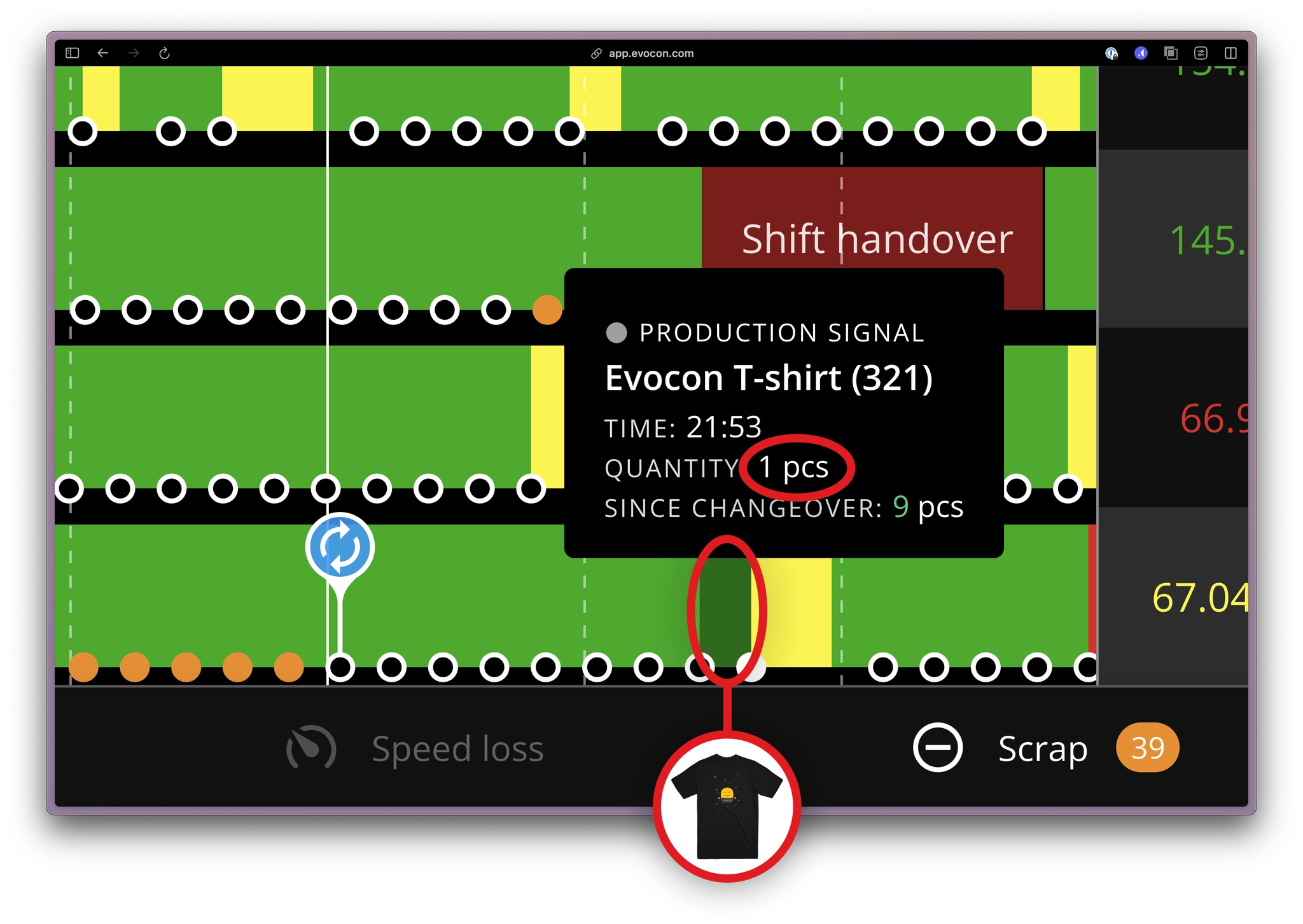
We can see that the green slice is 1 minute long, and that matches the ideal cycle time configured for this T-shirt (one T-shirt per minute). So, the machine is performing at its top speed.
But the next T-shirt was registered with a delay:
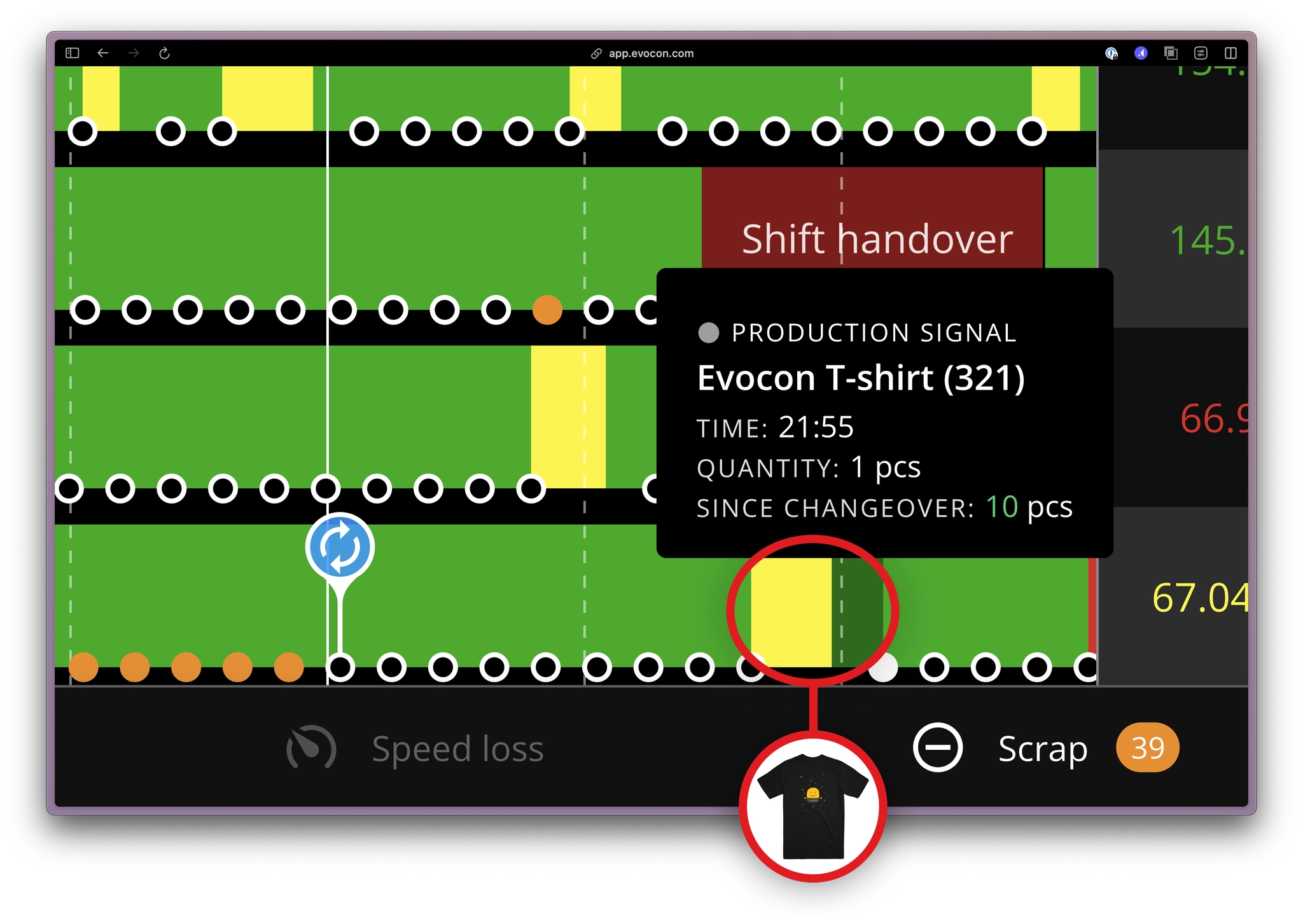
We see that it took longer to make it. Actually it took almost 3 minutes, because the exact time of the production signal is 21:55:51, as can be seen by clicking on the signal:
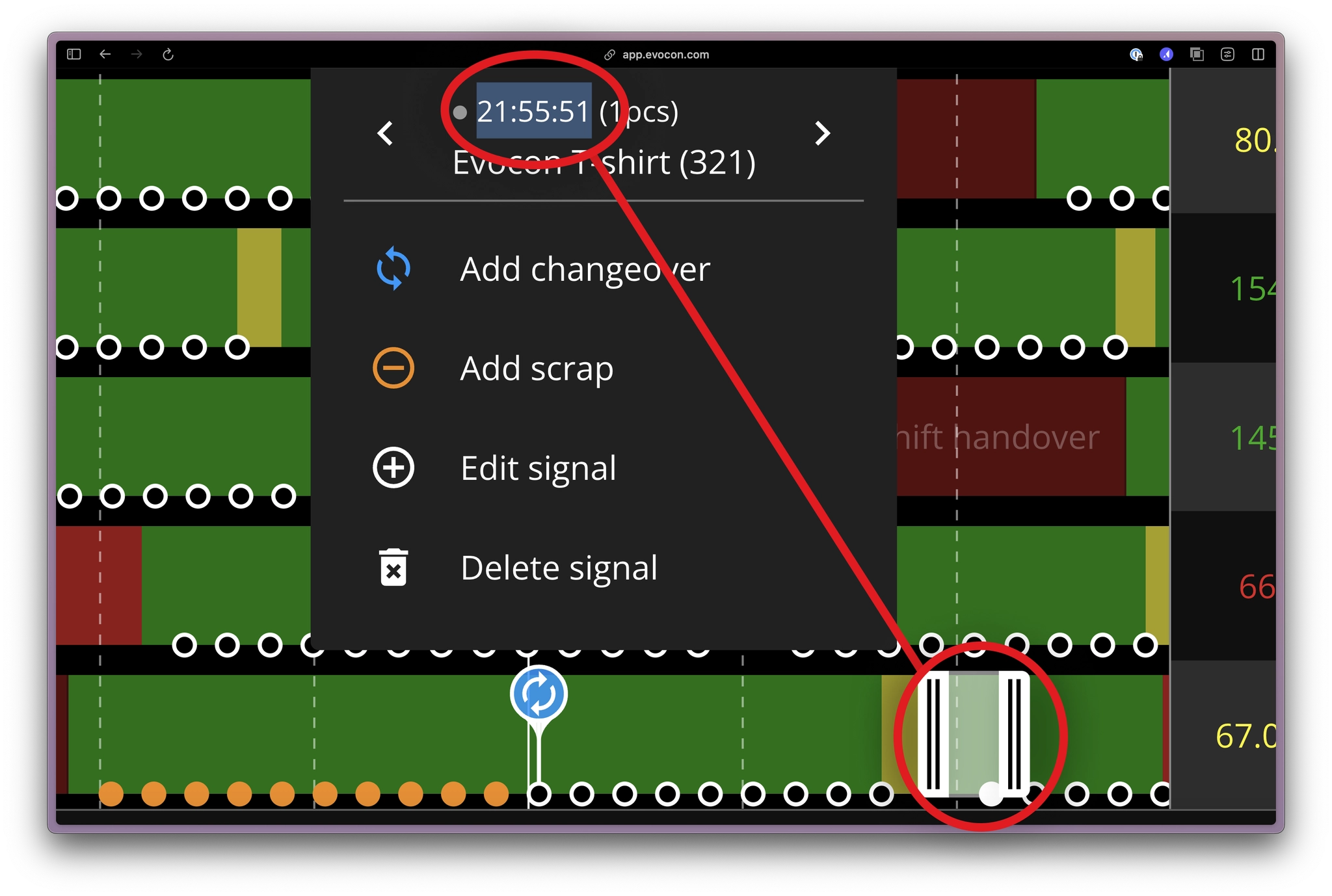
That is why we start seeing yellow color, which means speed loss, and that machine performance is below 100% for that moment. The proportion of yellow color matches the performance percentage - it is basically performance calculation expressed visually.
Performance calculation - formula and visual cues
So if we look up exact duration of green and yellow slices on Evocon Shift View:
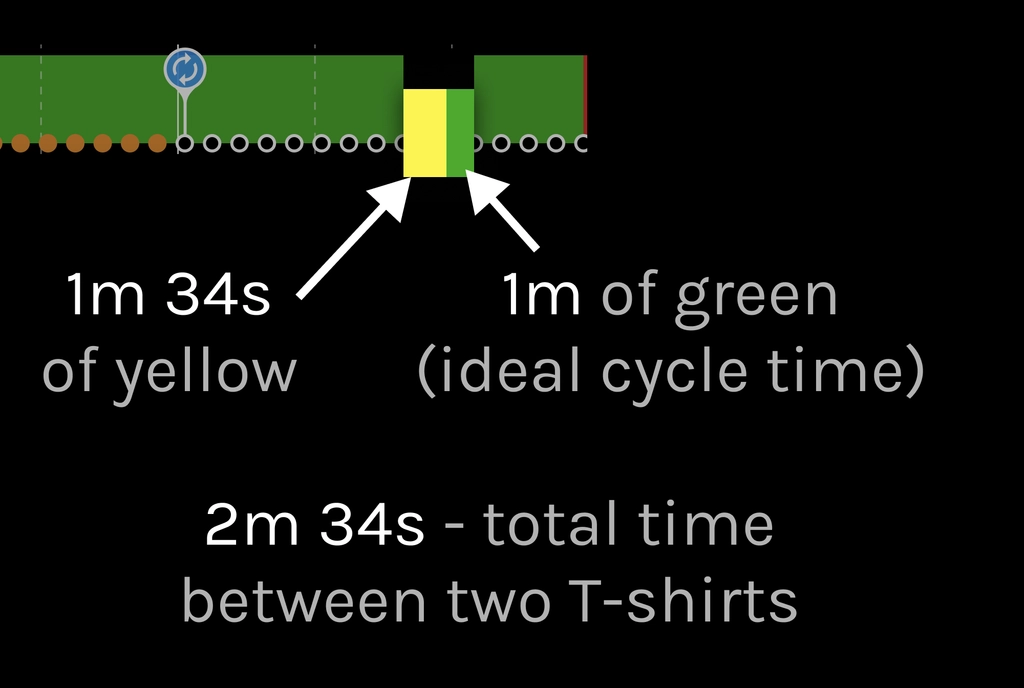
Then the calculation works as follows:


To calculate the performance of the whole hour, or the whole shift, or the whole year, we simply sum-up ideal cycle times and actual cycle times over a longer period of time:

How does Performance become more than 100%?
This happens when actual cycle time is too fast - faster than ideal cycle time. Let's imagine that we are making a T-shirt every 30 seconds, when the target (ideal time) was every 1 min:

On the Shift View, this would look simply all green, like this:

But if we calculated the performance, we would get 200%!

This is not a good thing, because the target is too low, which makes your overall numbers incorrect. The solution is to adjust the ideal cycle times towards a more realistic number. But first, how do you find, when performance goes over 100%, if you can't see it on the Shift View timeline?
How to find where performance exceeds 100%?
The quickest way to find the issue is in the Reports section. For example, here is the chart that shows OEE and its components, including performance, for different production lines, day by day:
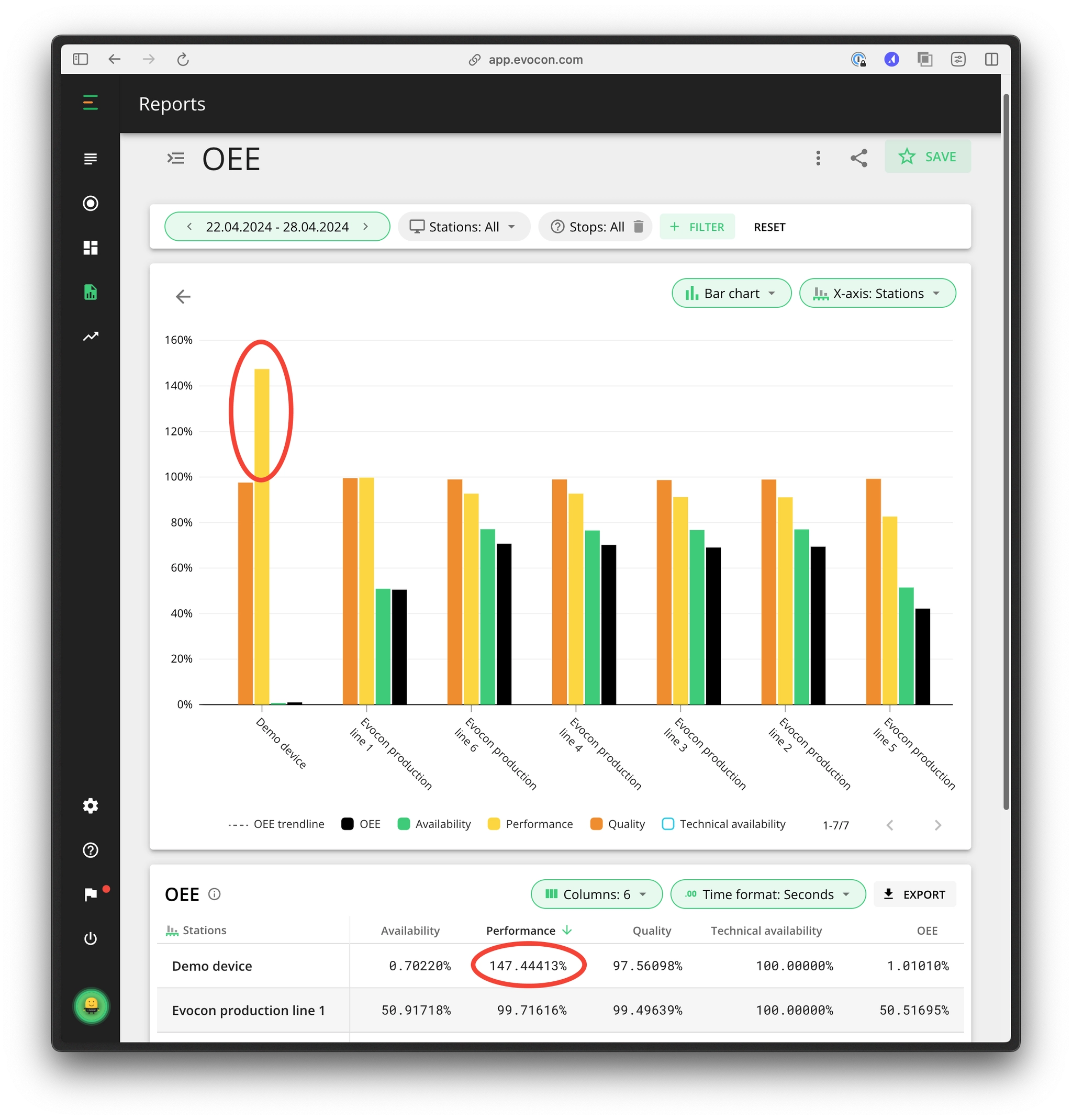
One station stands out by having performance at 147% during a time period of a week.
Drilling down reveals that this is due to one particular day: 26th of April in 2024.
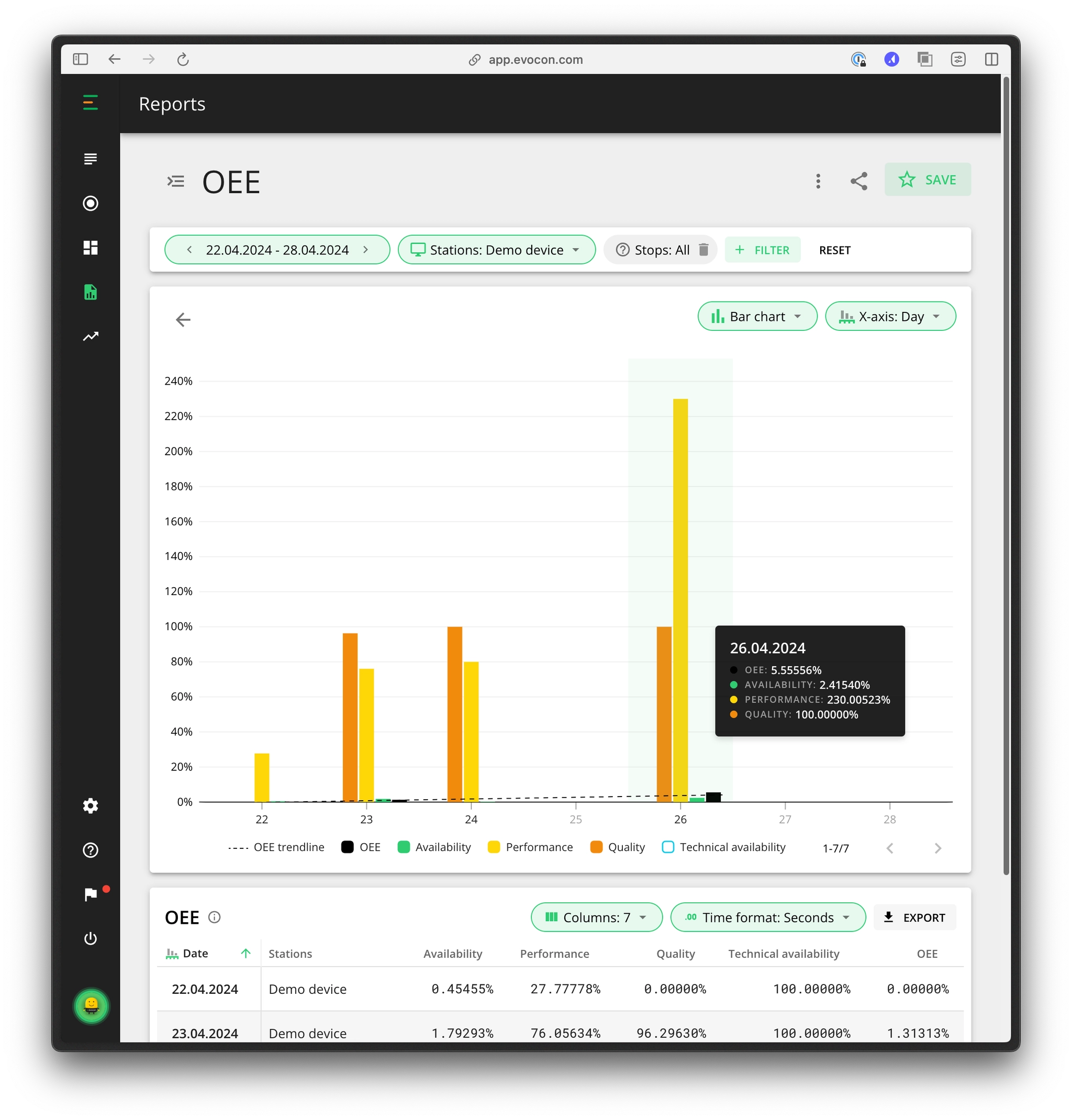
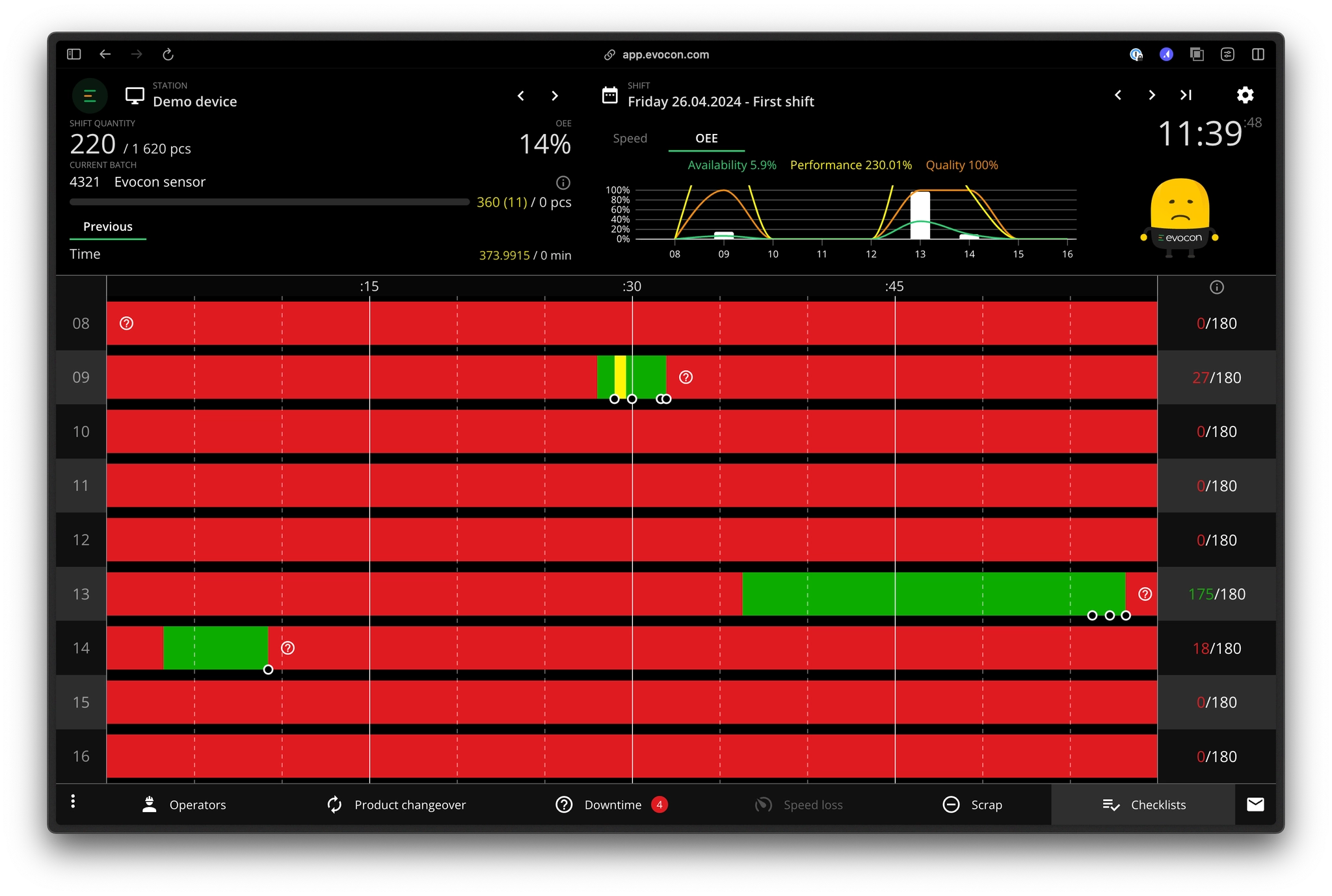
Let's navigate to the shift where it happened: