
Reports and analysis · Guide 28 of 28
Downtime extra notes insights with AI
How to get AI-generated insights from downtime extra notes in the Downtime report, what the Excel file contains and the feature's limitations.
On this page
What is it about?
Downtime extra notes can often be hard to analyse and extract useful info from over bigger time periods or amount of notes.
Evocon provides a way to get quick and detailed insights from your extra notes by grouping them with help of AI and calculating key metrics like downtime and any significant relationships with products, operators, shifts or locations.
This way you are able to uncover the true reasons behind your downtime and take actions to fine tune your stop reason setup or make changes on the shop floor.
Where can I access extra note AI insights?
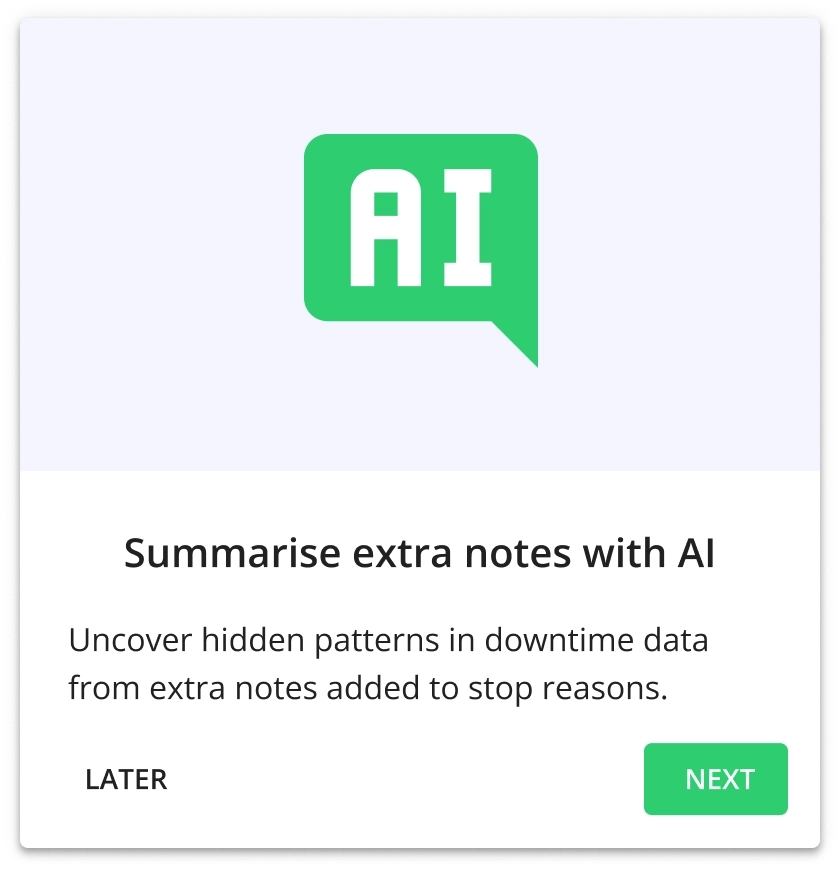
You can access it from the standard Downtime report, which is the default report that is opened when you go to Evocon Reports module. If this feature is enabled, the first time you open the Downtime report, you can see the introduction flow in the bottom right corner.
This flow shows useful information about the feature, so we recommend going through it, but if you click "Later", you can return to it at a more suitable time.
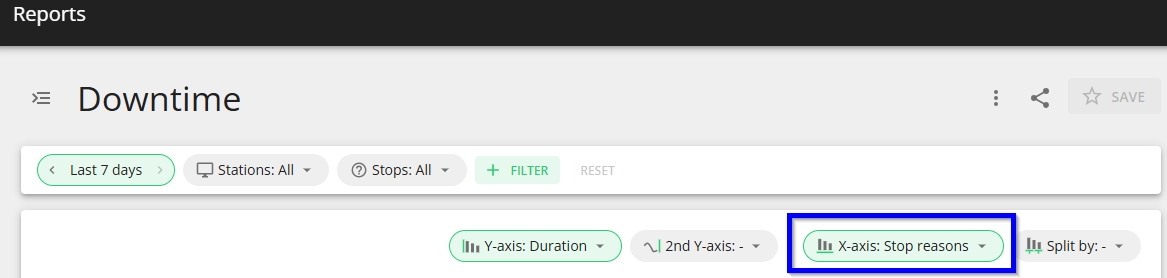
If there are enough notes (at least 50) at least on one station for a specific stop reason, it will have the "AI" icon appearing right after it:

How to get the AI insights for a stop reason?
-
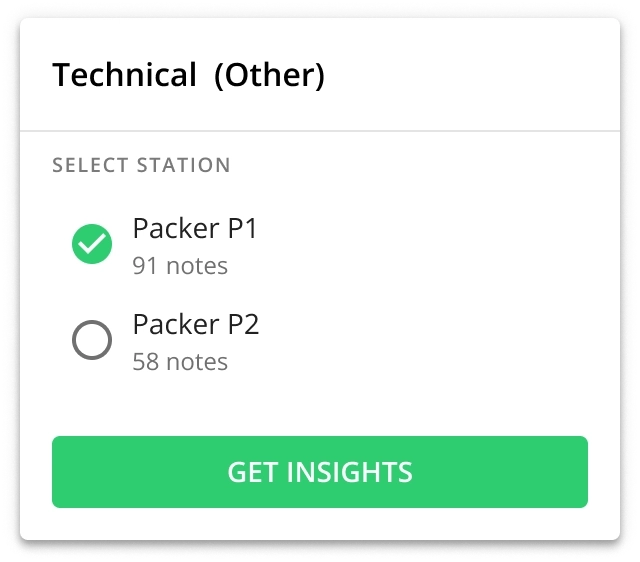
When clicking on the "AI" icon, you get a list of stations to select from (you can only select one at a time).

- Please note that only the stations that have this stop reason with more than 50 added extra notes are listed as options here.
-
To get the AI generated insights to your account's e-mail, click on the "Get insights" button.
-
After the process is successfully started, you will see a confirmation that the insights will be sent to your e-mail:

-
You will receive an e-mail with the AI insights overview, and the data and analysis results downloadable as an Excel file.
- Please note that the file download link expires in 3 days.
-
Excel file structure:
- The "Summary" sheet contains all the found themes from notes and their total downtime with any significant patterns brought out for: Operators, Shifts, Products, Product Groups and Locations with original unique notes brought out also for reference.
- "The Summary" sheet also brings out two hardcoded themes:
- "Stops without notes", if some stops within the analysed scope did not have any extra notes.
- If some clusters of notes do not form a statistically significant theme, they are moved to "Other".
- The "All notes" sheet contains full raw data of the notes with the theme attached to each note should you wish to do deeper pivot based analysis.
What are the limitations when using this feature?
- Since this analysis requires system resources, we have applied a limit (per customer).
- When this limit is reached, the user will see a notification that also states when the limit is reset.
- The maximum amount of extra notes that can be processed/analyzed at one time is set to 20000. If this limit is exceeded, the user will see a notification stating that.
- In this case we suggest setting the timeframe to a shorter period, thus having less extra notes to process.
- In case more than 5 analysis requests are sent very closely (they are queued in the system), the user will see a notification indicating too many requests.
- The solution is to wait a bit to have the system finalize the queued requests and then add next ones.