
Shifts, signals, alerts and checklists · Guide 9 of 11
Managing alerts
How administrators create, configure, edit and switch off email and Webhook alerts for downtime, scrap, changeover and checklist events.
On this page
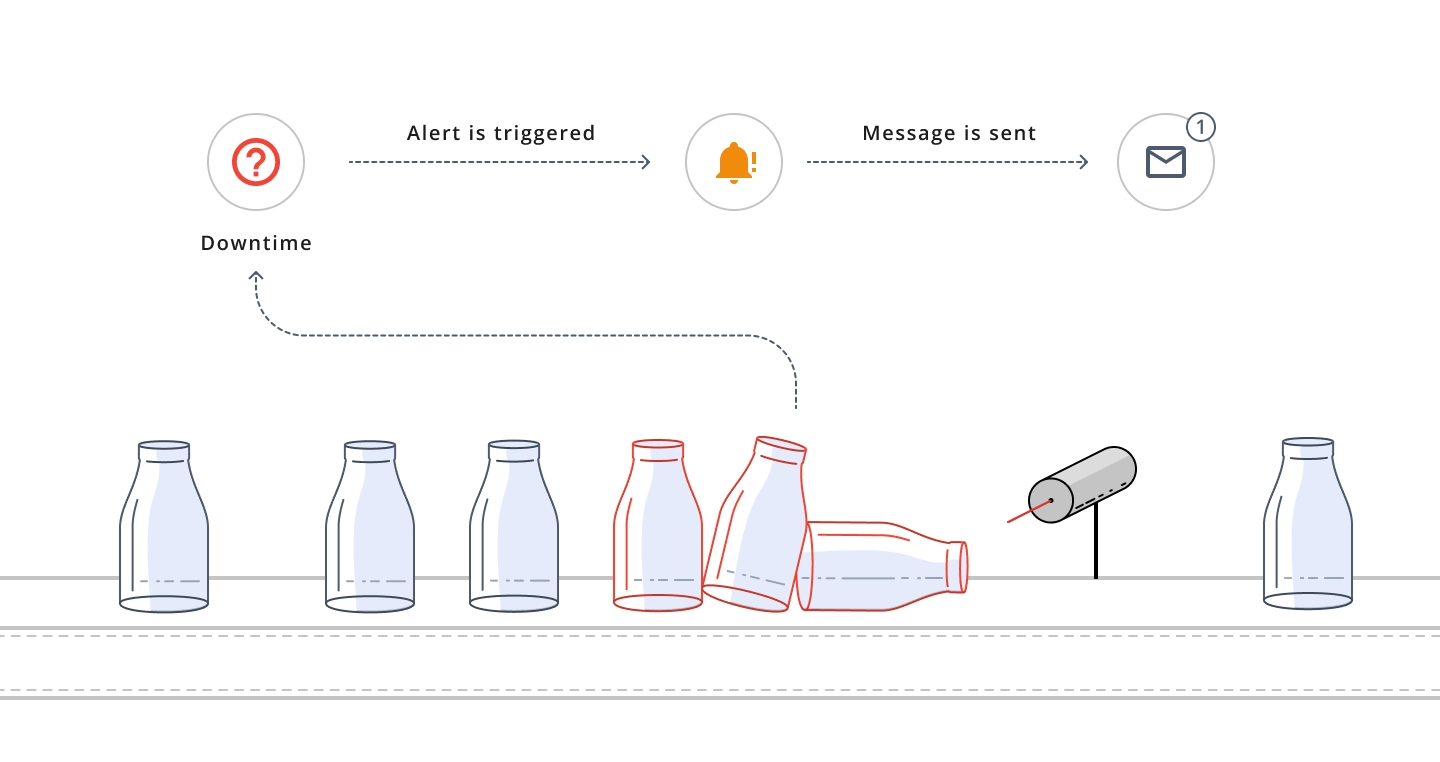
This feature enables administrative users (Company or Factory admins) to define triggers in Evocon and receive notifications via email or Webhook, thus providing real-time information for quick decision-making.
Based on their permissions, Company and Factory administrators can view, edit, and delete alerts created by others. Alerts remain active even if the creator leaves, ensuring continuity and easy reassignment.
A trigger is an event on Shift View that will send out an alert. Alerts can be set up for stop reasons, scrap, product changeover and checklist events and the user is notified via email or a notification set up via Webhook (1-2 min delay).
How to create an alert?
-
Go to Settings and click on the "Alerts" card:

-
Click on "+ ALERT" button to add an alert.
Setting up an alert
-
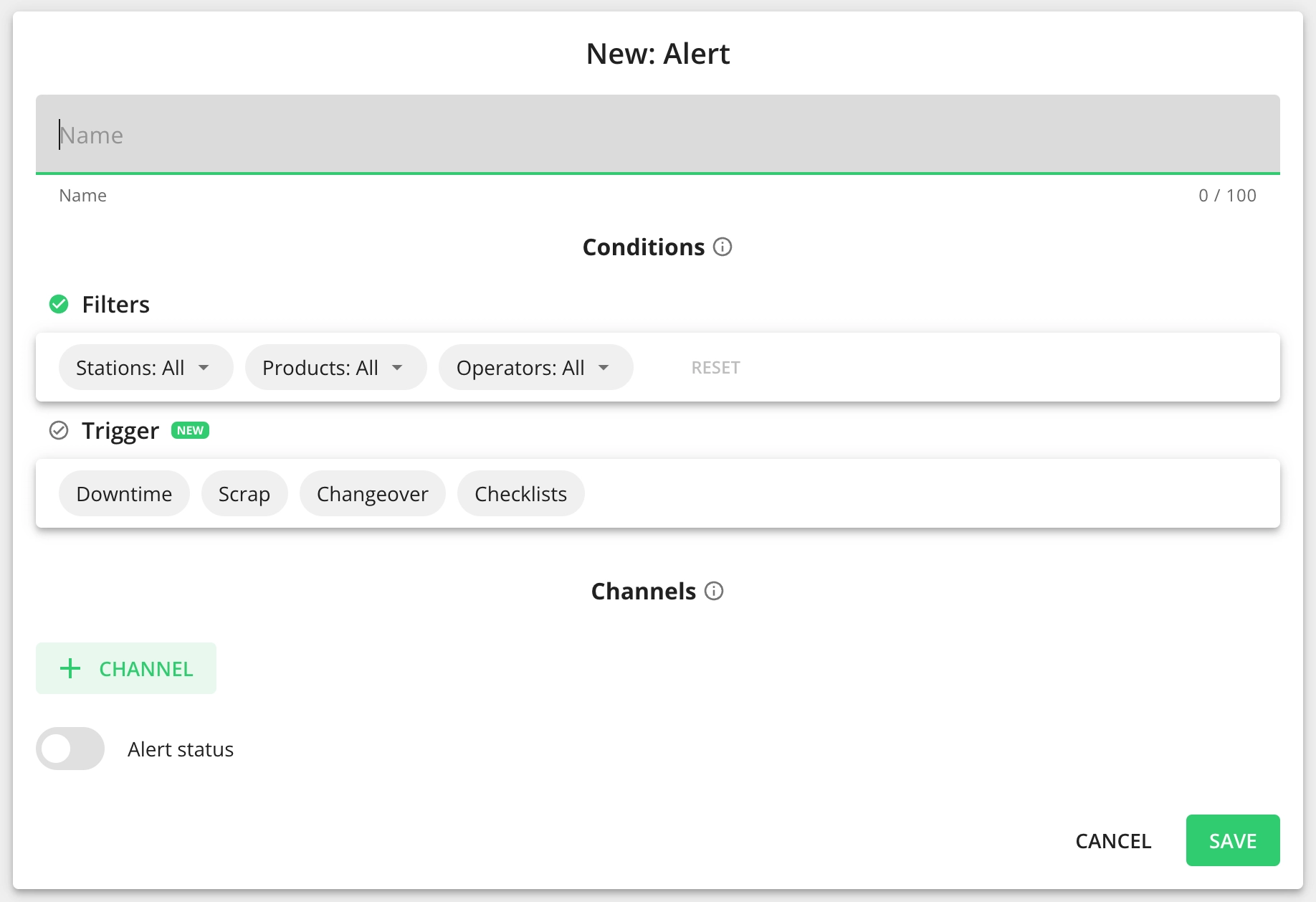
Fill out the "New: Alert" form
- Name – A name for the alert that you can recognise later (e.g. Mechanical Stop at Station 1)
- Filters – Choose the factory, station, product, operator and/or shift that this alert applies to
- Trigger – Set up the trigger for the alert (see below for more information on the triggers)
- + Channel – Add to which channel you want to receive the notifications and define the variables you want to see in the alert message
- Alert status – use the toggle to activate or disable the alert

-
Click "Save" if you are done
How to use triggers?
-
Downtime – Define which stops (and machine locations, if used) will trigger alerts.

- "Lasts longer than" trigger – the trigger will set off an alert whenever a stop happens that is longer than the time set up. This trigger can be used on any stop (including uncommented stops).
- "Is added" trigger – an alert is sent out when the stop reason is added. This trigger affects commented stops only.
- "Repeats" trigger - the alert is sent out when the defined stop reason(s) repeat the set amount of times within a shift. This trigger can be used on any stop (including uncommented stops).
-
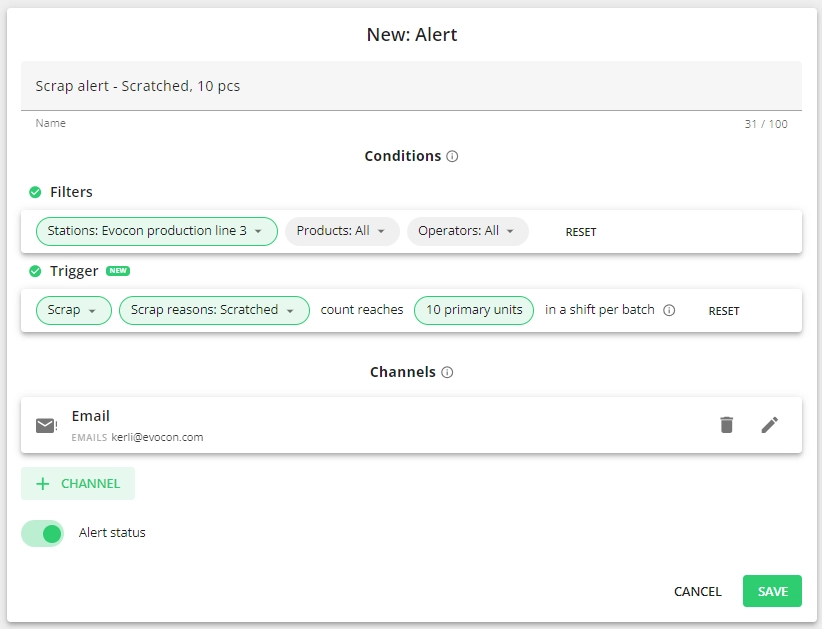
Scrap - Define which scrap reason(s) and at what count triggers the alert.
- The alert is activated from the next changeover, meaning the ongoing batch will not have this alert triggered even if the conditions are otherwise met.
- If user is adding scrap to multiple signals at once - using brackets or adding scrap from the bottom menu - multiple alerts are sent out.
- Example: if the alert is set to 5 pcs, but 12 pcs are marked as scrap, then 2 alerts are received.
- In case of production signals with bigger multipliers (quantity per signal), the alert is "bundled together" - the scrap over the set threshold quantity within a signal is added to the alert, one alert is sent and the counter is reset.
- Example: The set alert scrap quantity is 5 pcs and the signal quantity in Shift View is 25 pcs. Now the operator marks 12 pcs of one signal (so out of 25 pcs) as scrap - this is 2 times the set alert qty + 2 pcs. The alert is sent out once with the whole quantity - so one alert message indicating 12 pcs, the counter is also reset.
-
Changeover - Define which changeover actions trigger the alert
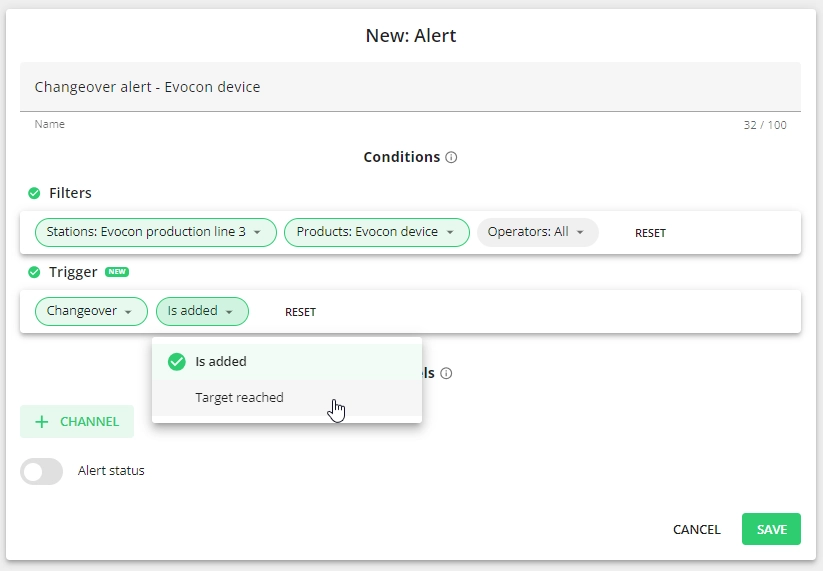
- You can choose between two actions: when the changeover is added in Shift View or when the target of the batch is reached.
- If there is no target set at the changeover, then no alert is triggered for the "target reached" option.
- You can choose between two actions: when the changeover is added in Shift View or when the target of the batch is reached.
-
Checklist - Define which status triggers an alert for the selected checklist(s).

Adding channels

-
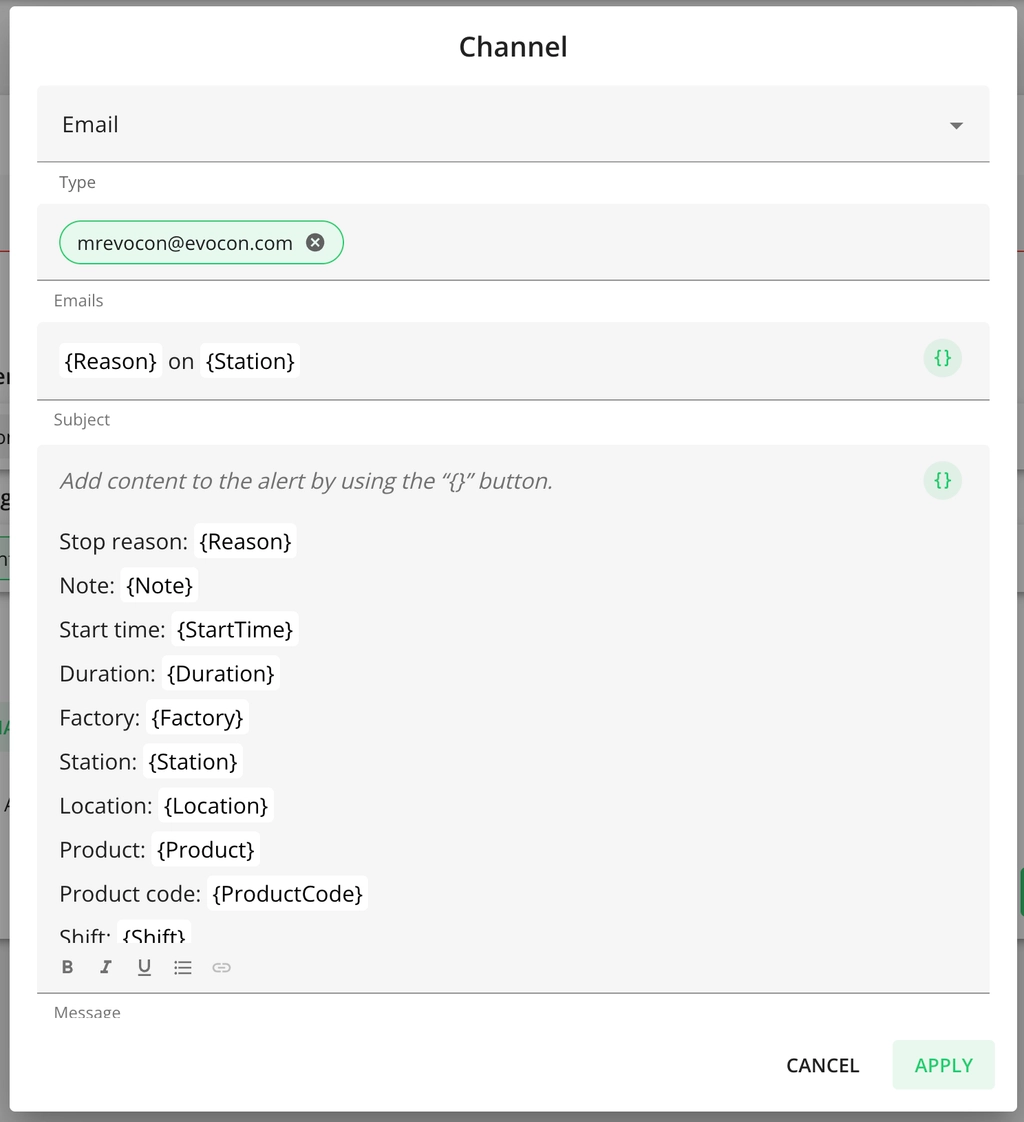
Type: Email
- Email: Specify the recipient(s) of the alert
- Subject: Values defined in the brackets will be seen on your email subject line
- Message: Variables defined in the brackets will be sent as an email message (you can select the variables you want to see in the alert)
-
Type: Webhook
- URL: This is the URL where the request will be sent.
- Message: This is where you can create a "body" of the webhook that is read by the receiving server. The body of the webhook message is base64 encoded.

How to edit alerts?
In Settings, alerts can be edited by clicking on the alert row or on the arrow icon in the overview. Switching the alert on or off can be done from the overview, without opening the edit view:
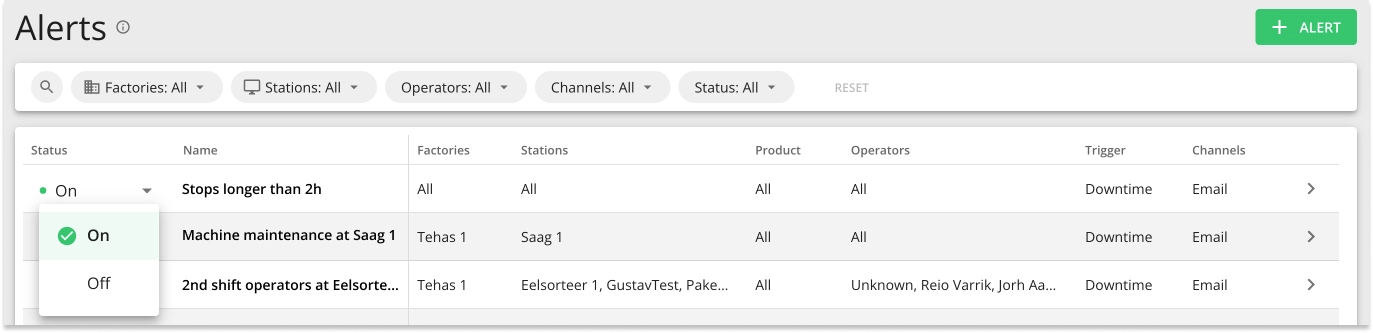
- Alert status "Off": If you want to set up an alert but do not want to start receiving it yet or just pausing the usage of an alert for some time for example.