Stations, products and reasons · Guide 2 of 14
Managing stations
How to create, edit and delete station groups, edit station settings, and what each station setting (notification emails, OEE targets, default reasons, advanced Shift View options) does.
On this page
Only our support team can add new stations. In most cases, we consider each input on the Evocon device as a station/machine and it needs a separate setup. That is why you can only manage the groups the stations belong to, edit the settings (also the name and description) of existing stations and not add new ones. If you would like to start measuring a new station contact our support.
In the station settings, there are different features for you to use. Each one has a different purpose and is built to help you monitor your machines more effectively. See below for more information.
How to manage station groups?
Stations can be organized into groups to have a better overview and offers the possibility to have your stations structured in Evocon. We recommend groups when a large number of production machines are connecting to Evocon and they perform similar processes.
Operators see the group level in the Shift View station selection.
How to create station groups?
-
Go to Settings → Stations.

-
Click on the +GROUP button.
-
Give a name to your group and in case you have multiple factories, select the factory as well.

How to edit or delete station groups?
-
Open group view (from top right corner).

-
Click on the editing icon in front of the group name.

-
Make the changes you need and click Save.
How to delete station groups?
-
Open group view (from top right corner).
-
Click on the editing icon in front of the group name.
-
Click on Delete and confirm by clicking on Delete in the pop-up confirmation.

How to edit station settings?
-
Go to Settings in Evocon and click on the Stations card.
-
Click on the entire row or on the arrow on the right of the station that you wish to edit:

-
Make the changes and confirm by clicking Save.

What settings can be managed for stations?
For every station there are multiple options the administrative users can select to utilize. The general information block holds the name, the group and the description of the station.
Notification emails
Operators can send messages from the Shift View and sent messages can only be delivered to e-mails that are defined for each station. These messages can be maintenance related or on topics that need reacting from managers. Follow this link to learn more about how to send messages from the Shift View.

OEE settings – happy and unhappy %
The purpose of this function is to give immediate feedback to operators about the performance of the work shift. If the shift OEE in Shift View is above the "happy" target % then Mr Evocon's emoticon on the Shift View page is happy. When shift OEE in Shift View is below the "unhappy" target % then Mr Evocon's emoticon on the Shift View page is unhappy. And when the shift OEE is in between happy and unhappy, Mr Evocon's emoticon is neutral.
Note: In Shift View, the OEE % is shown in green when OEE is equal or above Mr Evocon happy % and in white if it is below that.

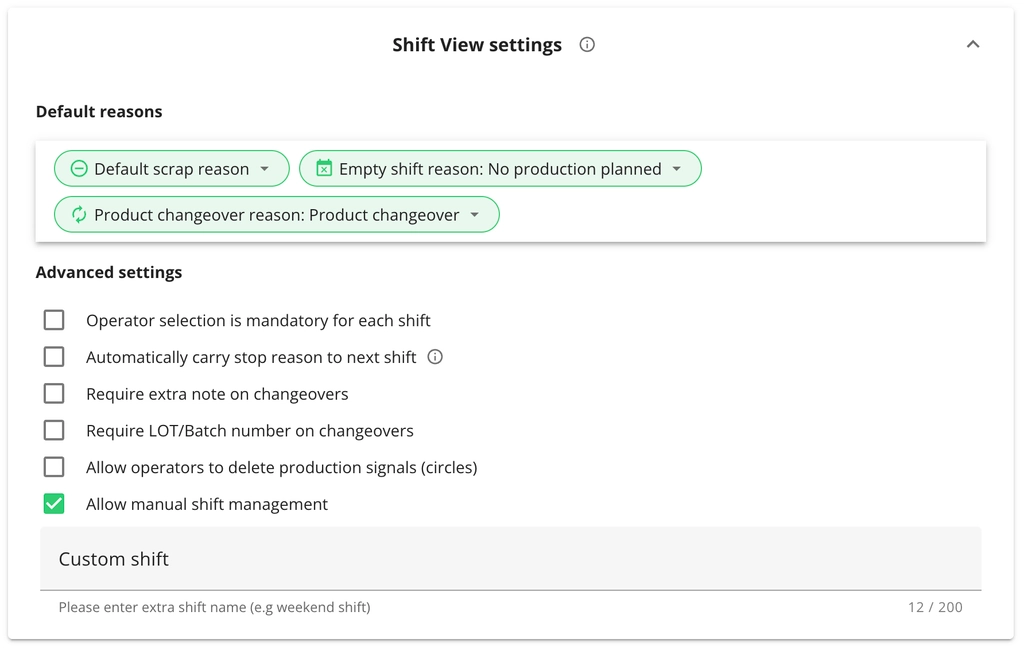
Shift View settings
Default reasons
Empty shift reason
The empty shift reason function is a tool used to identify and explain the cause of an empty shift, which is a shift during which no production was recorded (uncommented and no production signals). The function adds a stop reason to the empty shift, which can be either a planned or unplanned stop reason. It overwrites the auto-comments that have been applied during the shift at the end of the shift.
The empty shift reason function can be useful in excluding holidays from OEE statistics. For example, if a production facility has production scheduled from Monday to Friday, but Thursday and Friday are holidays, the system will automatically detect this and add the defined "excluded from OEE" stop reason. Read more about stop reasons.
To remove it, just uncheck the selected reason and save the change - it will be uncommented (like it is by default) again.
Product changeover reason
In case a product change is done on a production stop, this feature automatically adds the specified reason to the stop. The purpose is to help operators make their job easier. If the stop reason is always the same when making changeovers (e.g. Preparation) then with this feature, the stop reason will be added automatically.
To remove it, just uncheck the selected reason and save the change - it will be uncommented (like it is by default) again.
Default scrap reason
This function provides an option to define a scrap reason for each station that is always in the reason field as the default value (otherwise it is "Uncommented"). In case you are tracking scrap automatically, this default reason is always added and the operator does not need to do that each time scrap is detected.
To remove it, just uncheck the selected reason and save the change - it will be uncommented again (like it is by default).

Advanced settings
Require operator
For Shift View users it is possible to enable the required operator selection feature. This will make it mandatory for operators to register themselves at the beginning of a shift and before adding stop reasons in Shift View. The objective of this functionality is to improve operator engagement, performance and also production efficiency analysis. Read more about required operator selection.
Automatically carry stop reason to next shift
If this is enabled, the system will extend the added stop reason to new shift, but only if the next shift is right after the previous one (no time gap between). If the stop reason has a max duration limit set, this is also taken into account.
This takes effect from the changing time, meaning it does not affect past shifts.
Require extra note on changeovers
If this is enabled, then operators need to fill the extra note field with a comment whenever they add a product changeover in Shift View.
Require LOT/Batch number on changeovers
With this option enabled, operators need to enter a LOT/Batch number whenever they add a product changeover in Shift View.
Allow operators to delete production signals (circles)
This feature is sometimes necessary depending on the production process of manufacturers. Excluding of unwanted production, signals help ensure correct OEE statistics in production reports. Read more about deleting incorrect production signals.
Allow manual shift management
Extra shift allows operators to create shifts outside the scheduled shift times. When enabled, a button in the footer menu of the Shift View can be used for starting and finishing