
Security and audit · Guide 6 of 7
Activity logs - Settings
How to access the Settings activity logs, which columns and filters they offer and which user actions are logged for each Settings object.
On this page
- How to access the Settings logs?
- What fields are displayed in the Settings logs table?
- What filters are available for Settings logs?
- Timeframe
- Objects
- User actions
- Selection-specific filter
- What user actions can be seen in the Settings logs?
- Users
- Operators
- Stop reasons
- Speed loss reasons
- Scrap reasons
- Stations
- Machine locations
- Products
- Shifts
- Checklists
Admin user actions in Settings can be traced for clarity and issue resolution - activity logs ensure that every change, adjustment, or interaction is documented with a time stamp and the responsible user. Additionally, this type of data is needed for audits.
How to access the Settings logs?
Go to "Activity logs" card on the Settings page. Shift View logs are selected by default, so click on "Settings" (either from the side menu or the title) to access Settings activity logs.

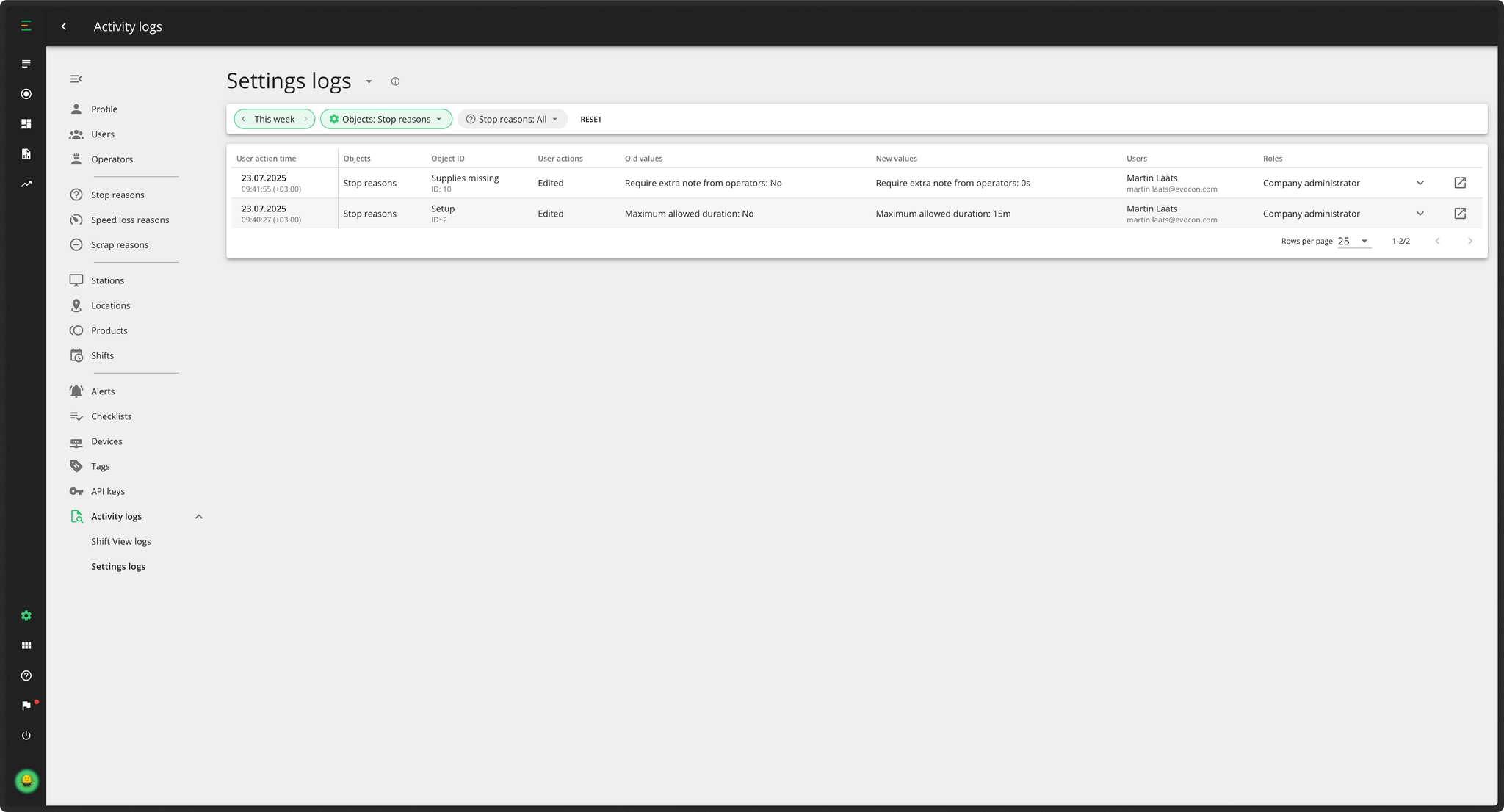
What fields are displayed in the Settings logs table?
The logs table includes the following columns:
- User action time: Timestamp of when a user modified a setting.
- Objects: Indicates the object type involved (users, stop reasons, etc).
- Object ID: Object identifier/name.
- User actions: Action performed (added, edited, deleted).
- Old values: Previous values of the setting (before the modification).
- New values: First entry or newly entered values (only changed values).
- Users: User's name and username who made the modification.
- Roles: User role under which the action was performed (e.g., Company administrator, Office user).
Each row has two icons:
- The first extends the row so all the information would be visible.
- The second opens the corresponding Settings modal (user account, stop reason, etc).
What filters are available for Settings logs?
Timeframe
- The available timeframes are today, yesterday, this week, last week and in addition the "custom" selection.
- By default the value is "Today".
Objects
- Objects selection is single-choice - meaning that only one object's logs can be viewed at a time.
- The default selection is "Users".
- The list contains: Users, Operators, Stop reasons, Stop groups, Speed loss reasons, Speed loss groups, Scrap reasons, Scrap groups, Stations, Station groups, Locations, Products, Product groups, Shifts, Checklists, Checklist groups.
User actions
- Filter to select which user actions are shown (for example "edited" or "deleted").
Selection-specific filter
- For each selection the specific object filter is added.
What user actions can be seen in the Settings logs?
Users
- User actions: added, edited, deleted
- Factory administrators can not see the changes Company administrators have made unless these concern objects that were Global.
Operators
- User actions: added, edited, deleted
Stop reasons
- Reason
- User actions: added, edited, deleted
- Translations modifications are not shown in logs
- Group
- User actions: added, edited, deleted
- Translations modifications are not shown in logs
Speed loss reasons
- Reason
- User actions: added, edited, deleted
- Group
- User actions: added, edited, deleted
Scrap reasons
- Reason
- User actions: added, edited, deleted
- Group
- User actions: added, edited, deleted
Stations
- Station
- User actions: edited
- Users can not add or delete stations, so these actions are not in the logs
- Group
- User actions: added, edited, deleted
Machine locations
- User actions: added, edited, deleted
- Translations modifications are not shown in logs
Products
- Product
- User actions: added, edited, deleted
- Each route modification creates a separate log entry where the entity is "Products (connected station)".
- Group
- User actions: added, edited, deleted
Shifts
- User actions: added, edited, deleted
- Includes status change (on/off) modification information
Checklists
- Checklist