
Shifts, signals, alerts and checklists · Guide 1 of 11
Shift scheduling
How to view the shift timeline and templates in Settings and how to create and edit shift templates.
On this page
Production shifts can be defined under the "Shifts" in Settings. You can set the shift start and end times, which stations they apply to, select the weekdays when they apply, set exceptions and also switch the templates on/off.
It is also possible to add auto-commenting from the templates, please find more information here.
If your production process also has occasional extra shifts (e.g. weekend shift) that are outside the usual schedule, then you can use our extra shifts feature – read more.
What are the different views under Shift scheduling?
The default view after opening the "Shifts" card from Settings is the shifts timeline view. You can switch between views from the top right:
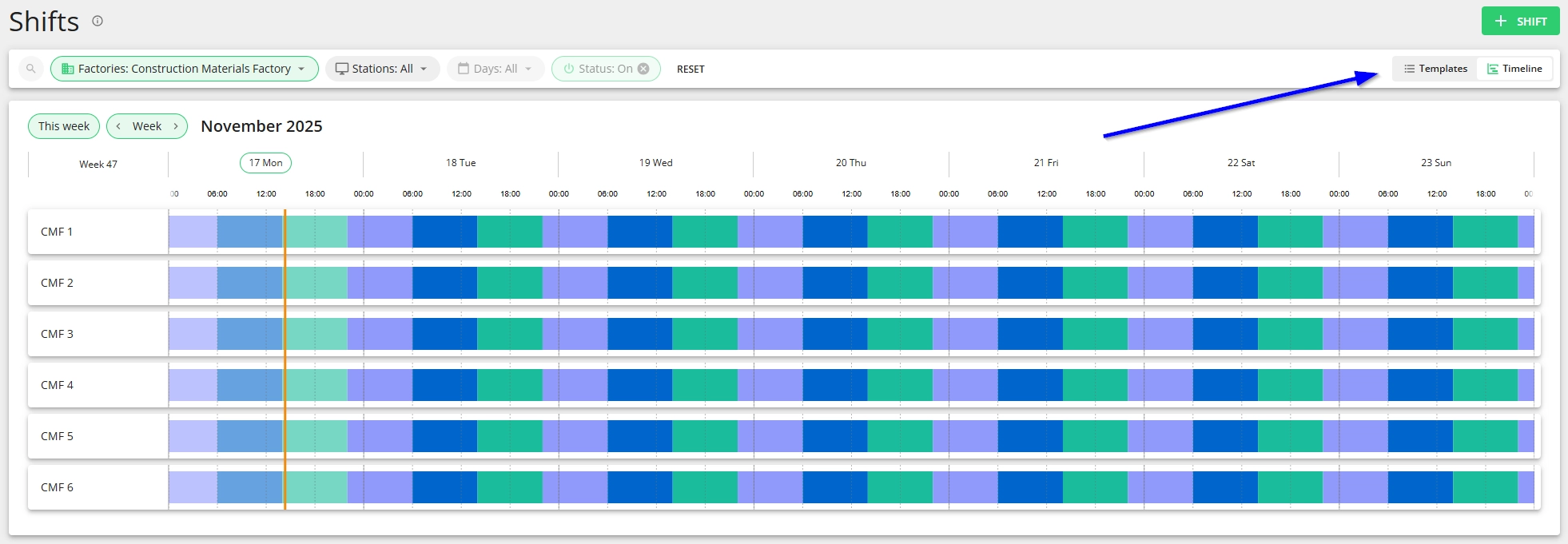
Timeline view
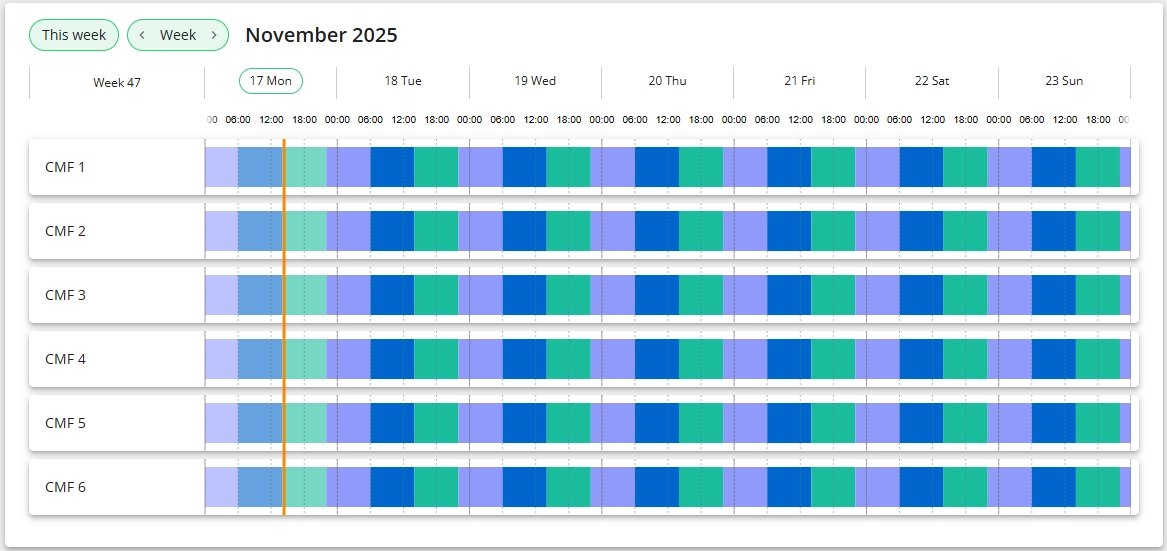
Timeline view uses the colors you have set for the shift templates to create a shift timeline for each station in your selection:
What functions are available in the Timeline view?
-
See the timeline view 1 week back, the current week and up to 2 weeks forward (4 weeks in total).
-
The vertical orange line on the timelines represents the current time.
-
View the timeline by week or day
-
You can open a day view by clicking on the date or by using the "Day" option from the dropdown:


-
-
For upcoming shifts, it is possible to edit shift time
-
This opens the same shift time editing modal as you can open from Shift View:


-
-
For upcoming shifts, it is possible to delete the shift, which creates an exception in the shift template (adds a "No shift" day).
- In case a wrong shift was deleted, you can "restore" it by going into the template and deleting the "No shift" day from there.

Templates view
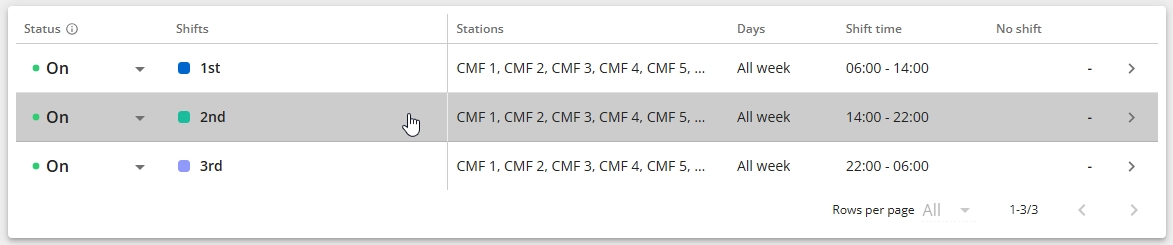
From the templates view you can see all the shift templates (based on your set filters) and you can switch the templates on/off and make edits to the templates.
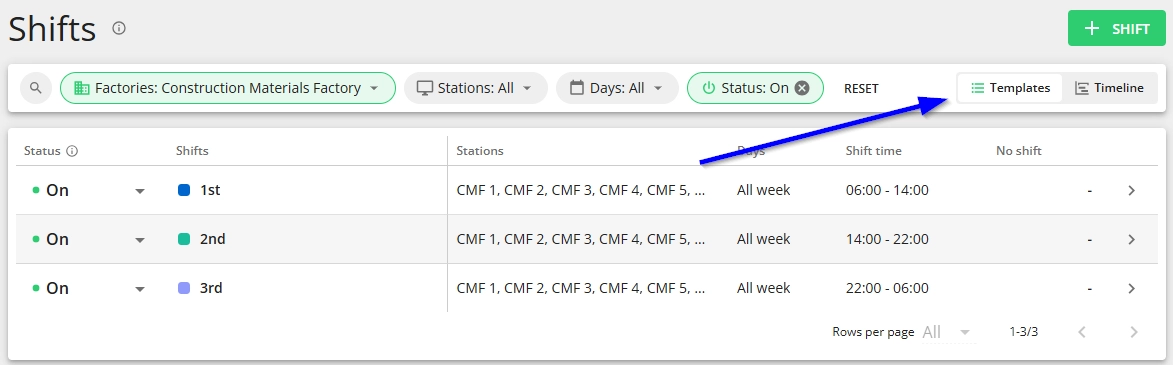
Please find more information on activating, editing and deleting shift templates below.
How to create a new shift template?
-
Go to Settings and click on the "Shifts" card.

-
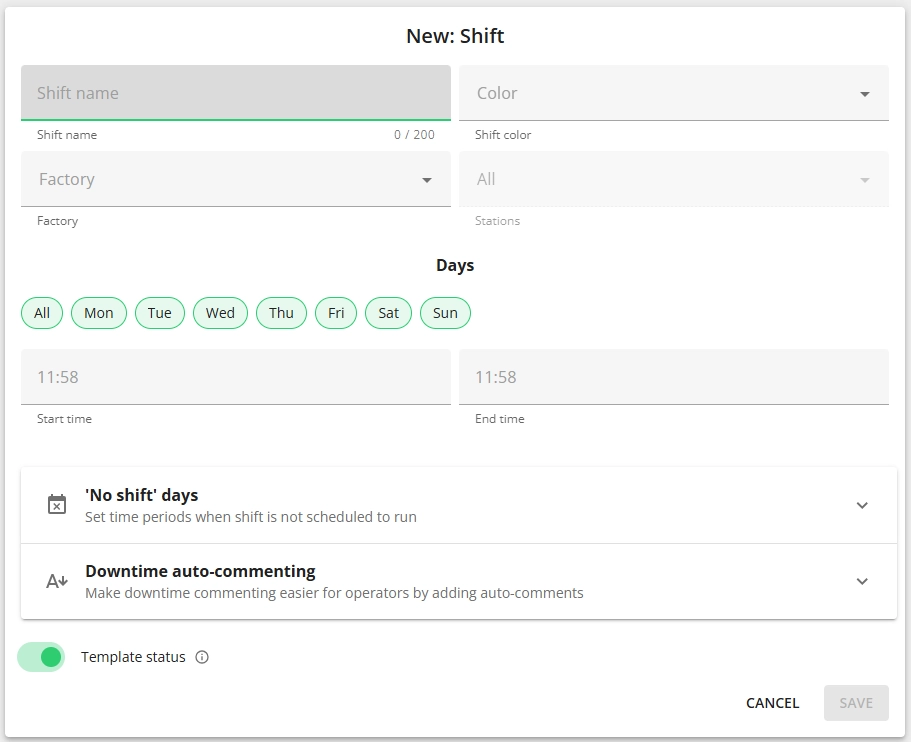
Click "+ Shift" button in the top right corner and fill in the form
Form properties
-
Shift name – name the shift (e.g. 1st shift, night shift).
-
Shift color - select a color that will be used for this shift in the shifts timeline view.
-
Factory - select the factory of the station(s) that this template will apply to.
- One template can only apply to station(s) in one factory.
- Applies to multi-factory setup only.
-
Stations – select the stations you want to add the shift to.
-
Days – select the weekdays when set shift times apply, or select the whole week by marking the "All" option in front of the weekdays.
- By default all weekdays have been selected (marked green).
-
Start time – set the start time of the shift.
-
End time – set the end time of the shift.
-
"No shift" days - this is where you can set exceptions to the schedule - mark dates when the shift will not run.
-
Click on the section and the button "+ No shift" will appear.
-
From there you can set one or multiple exceptions, naming the exception for better overview and setting the stations this exception applies to:

-
-
Downtime auto-commenting - you can set up the auto-commenting of recurring stops, please find more information here.
-
Template status - switch the template on/off.
- By default it is set to ON.
-
-
Click "Save".
How to edit shift templates?
-
Go to the "Templates" view under Shifts:
-
Quickly find the shift you wish to change using filters.
-
To edit, click on the entire row or on the arrow on the right.
-
Make the changes and click "Save".
When will changes to shift times take effect?
Changes apply up to 24 hours into the past (if there aren't any previous