
First access and account · Guide 1 of 7
How to set up Evocon?
Step-by-step administrator guide to the initial Evocon setup in Settings: profile, stations, shifts, operators, stop and speed loss reasons, products and users.
On this page
- Getting started
- What do I do with the default data after my first login?
- What if I need help during the setup phase?
- 1. Setting up your profile
- 2. Setting up stations
- 3. Setting up shifts
- What do you need to know about shifts?
- How to set up shifts?
- 4. Setting up operators
- What do you need to know about operators?
- How to add operators?
- 5. Setting up stop reasons
- How to add stop reasons?
- 6. Setting up speed loss reasons
- How to add speed loss reasons?
- 7. Setting up products
- What do you need to know about product configuration?
- How to add products?
- 8. Setting up users
In order to set up Evocon, you have to have an administrator account and be logged in to Evocon.
Getting started
Setting up Evocon consists of 7 steps and the whole process usually takes between 30 and 60 minutes to complete.
To get started, click "Settings" on the side menu in the Evocon app.
In the Settings view, you will see subsections for different parameters.
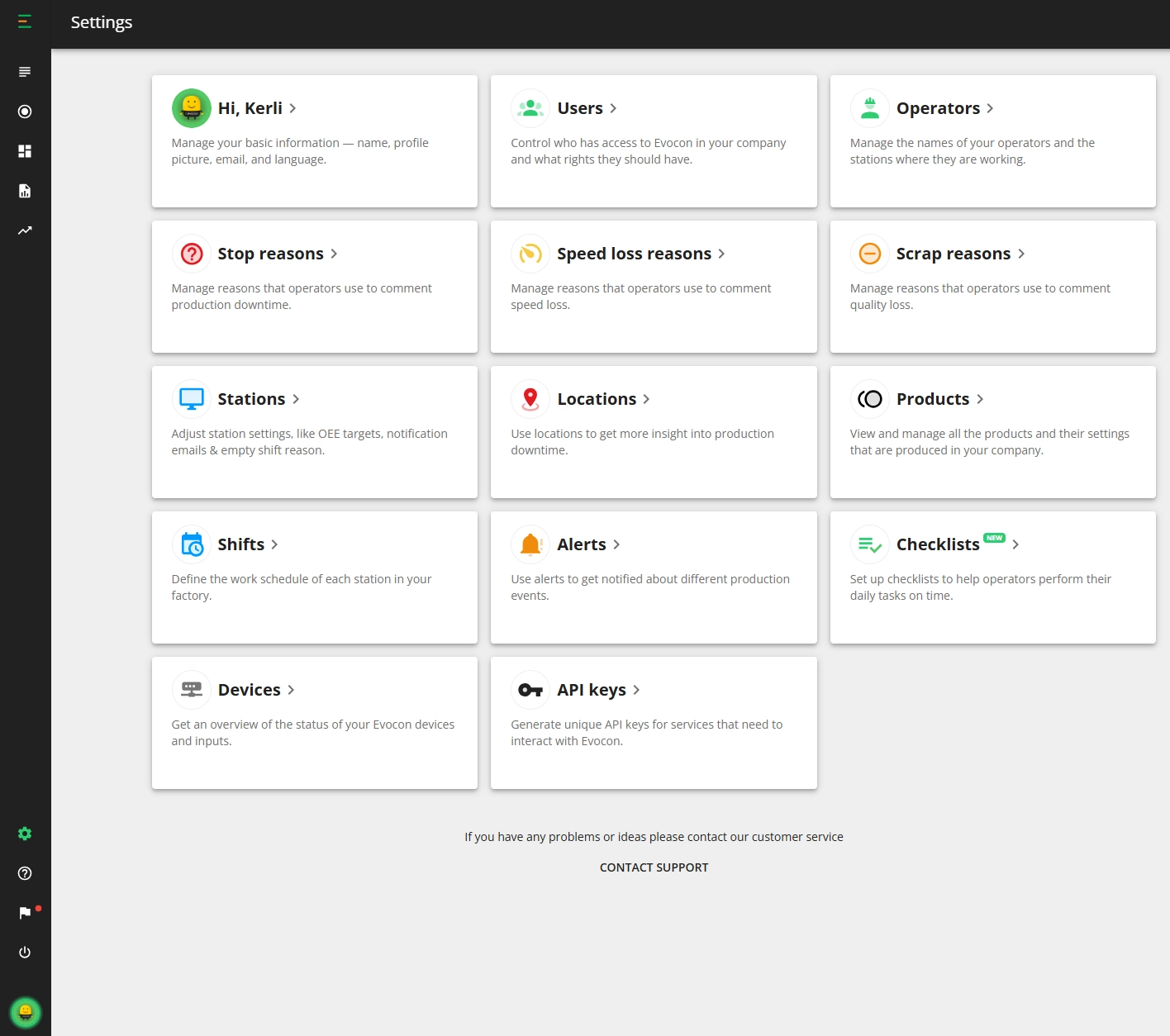
What do I do with the default data after my first login?
When we create a database in Evocon for a new customer, we also populate it with default data. The default data on stations, shifts, product and stop reasons are there to help you understand how you can add your own. It is safe to delete or rename these items as required.
What if I need help during the setup phase?
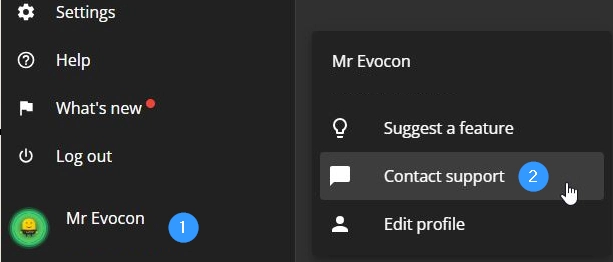
If you have any questions during the setup process, contact us using the "Contact support" option on the side menu or send us an email.
-
Click on the green icon or your name in the bottom of the side menu.
-
Then click on "Contact support".
1. Setting up your profile
The first card in the top left corner is your profile card.

Clicking on the card opens it with different options.
- You can change the system language under personal info if you need to.
- If you would like to always see a specific station when you open Shift View, choose the default station under the "Permissions" section.
- Click "Save" to save your changes.
2. Setting up stations
The next section to set up is Stations, which represent the measuring points in Evocon.
Click here for a more detailed guide for setting up stations.
-
Click on the "Stations" card.

-
By default the stations list view is opened. You can change to group view from the top right corner:
-
If you want to add groups, click on the "+ Group" button.
-
To edit, click on the row of the station.
-
Modify station settings as needed and click "Save".
Note: It is currently not possible to add stations from this view. If you would like to set up and measure more stations, contact support@evocon.com.
3. Setting up shifts
Shifts are what define the working schedule of a station.
It is possible to use automatic shifts if work times are based on a predefined schedule. And it is also possible to enable manual or extra shifts that can be started by the operator when additional orders need to be fulfilled outside of the scheduled time.
What do you need to know about shifts?
Before you move on, here are important things you need to know before setting up your shifts.
1. Shift template times cannot overlap.
If the morning shift is scheduled from 8:00 - 17:00, the start time of the evening shift cannot be earlier than 17:00.
2. Different days can have shift times that overlap.
For example, you can have a morning shift from 8:00 to 17:00 and an evening shift from 17:00 to 02:00 on Monday, Tuesday, Wednesday and Thursday as one template. And a separate shift template for day shift from 8:00 - 15:00 shift on Friday.
3. Changes to existing shifts will not affect shifts that are currently running.
For example, it's Monday at 13:05, the current day shift started at 08:00 and will end at 17:00. Changes are made to the day shift and new end time is 18:00. The current day shift that is running will still end at 17:00 but the following day the shift will run from 8:00 to 18:00.
How to set up shifts?
-
Click on the "Shifts" card.

-
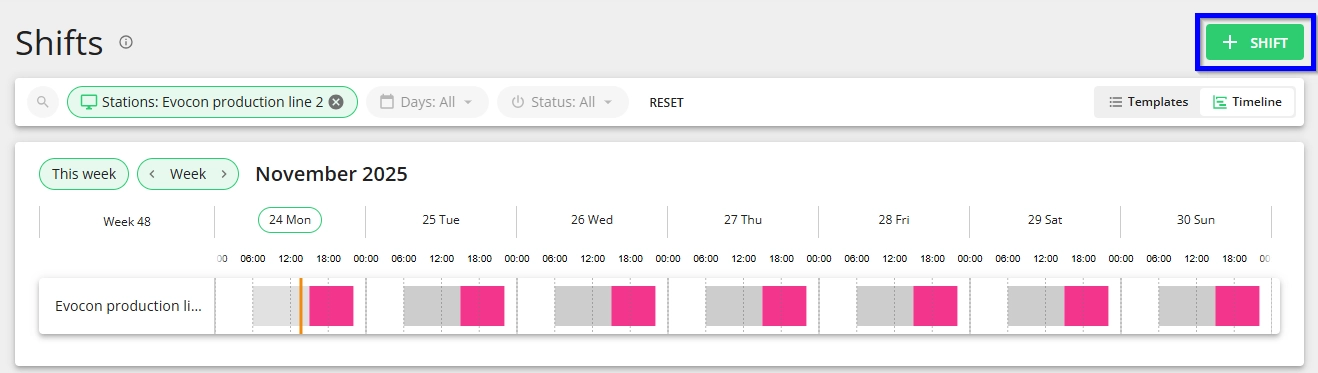
Click on add "+ Shift" button on the right.
-
Fill the form, save and activate the template.
-
To make changes, edit the shift name, start time, end time or days of the week where this shift is active. Save the changes or cancel to discard changes.
-
Add as many templates as necessary by clicking the "+ Shift" button. You can also enable/disable templates as needed.
4. Setting up operators
Operators are connected to your stations and shifts. Defining them and making sure that they register themselves for shifts gives the possibility to analyse production reports based on people and teams.
Click here for a more detailed guide for setting up operators.
What do you need to know about operators?
Operators are not users that can log into Evocon. Instead, it's a list of names from where the person who is currently using Evocon Shift View can select themselves from. We suggest that you create one "Shift View user" for each of your stations, save the password with an administrator account and keep that user always logged in. This way, operators do not need to remember passwords and can only access the "Shift View". Setting up users is the last step of this guide.
How to add operators?
-
Click on the "Operators" card.

-
Click the "+ Operator" button.
-
Type in the first and last name of an operator.
-
Choose the station(s) where the operator will work.
-
Click "Save".
Note: you can edit and delete operators by clicking on the row in the list or on the ">" icon.
5. Setting up stop reasons
Stop reasons are an important part of Evocon that give you information about what is causing availability losses in your production process. Usually, Evocon clients already have a predefined list of stop reasons written out somewhere. If you have this, then it will make this process a lot easier.
If you don't and want ideas on how to group and define stop reasons, then please read the following article: How to define machine breakdown causes?
Click here for a more detailed guide for setting up stop reasons one-by-one, or here to use the importing option for bulk upload.
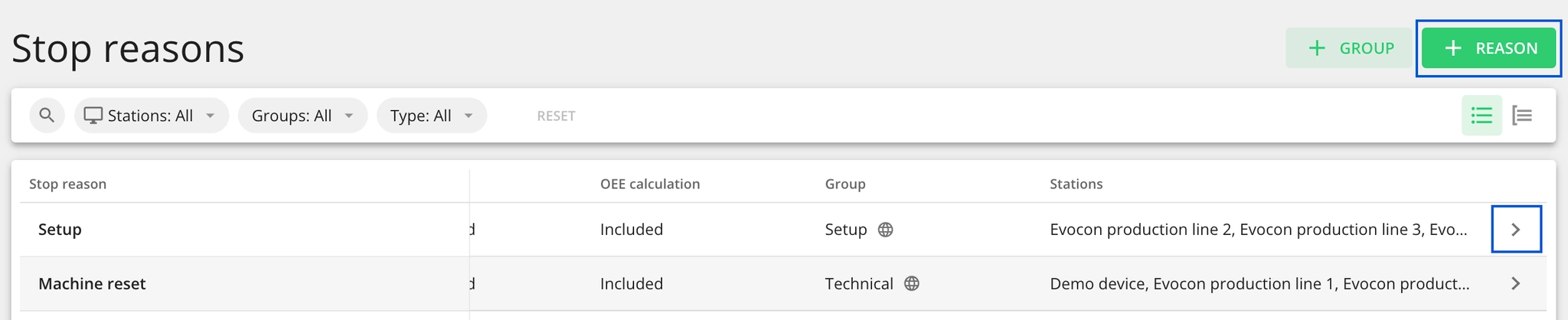
How to add stop reasons?
-
Click on the "Stop reasons" card.

-
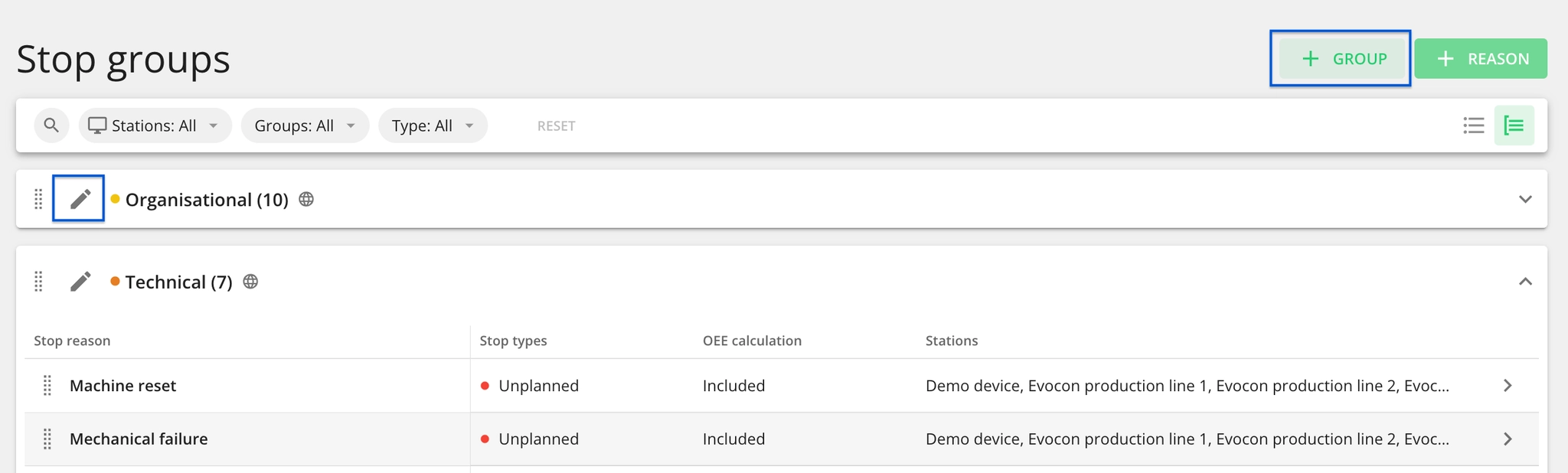
Set up stop groups using the "+ Group" button or by editing existing groups.

-
Set up stop reasons inside the groups using "+ Reason" button. To edit, click on the entire row or on the arrow on the right.

6. Setting up speed loss reasons
The possibility to comment speed loss (yellow areas) in Shift View provides even more insight into production issues and possible improvement areas.
Click here for a more detailed guide for setting up speed loss reasons.
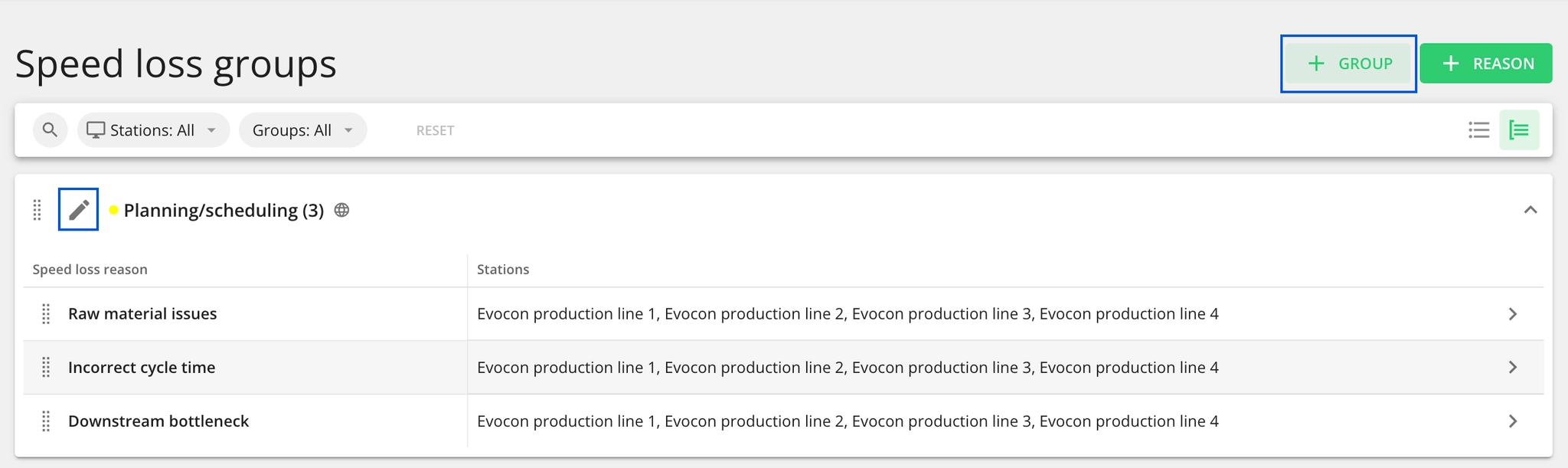
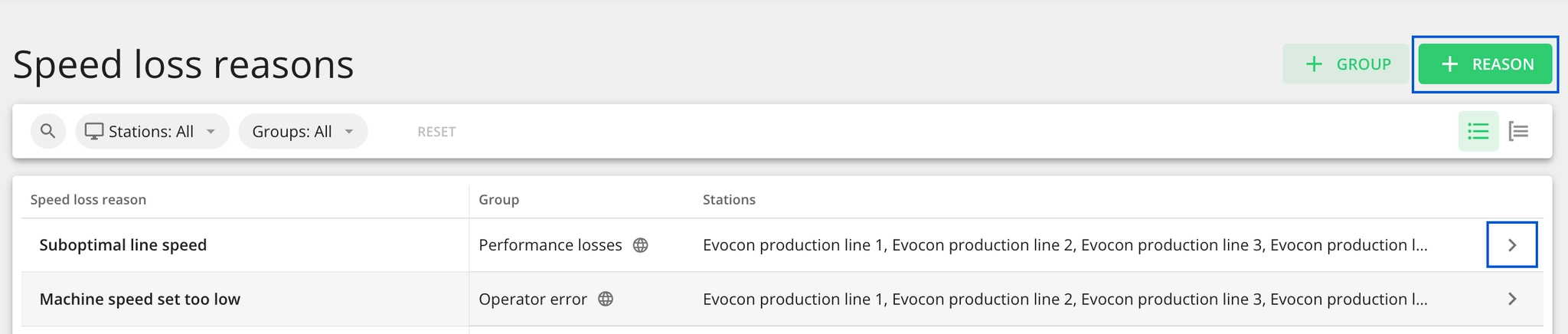
How to add speed loss reasons?
-
Click on the "Speed loss reasons" card.

-
Set up speed loss groups using the "+ Group" button or by editing existing groups.

-
Set up speed loss reasons inside the groups using "+ Reason" button. To edit, click on the entire row or on the arrow on the right.

7. Setting up products
The configuration of products tells Evocon which products and at which target speeds or cycle times are produced on a station.
What do you need to know about product configuration?
Setting up products consists of two parts. First, you define a product and then in the second part, you connect it to a station. When configuring products to stations keep in mind that one product can be connected to multiple stations with different parameters.
Click here for a more detailed guide for setting up products one-by-one, or here to use the importing option for bulk upload.
How to add products?
-
Click on the "Products" card.

-
Set up product groups using the "+ Group" button or edit an existing group.

-
Set up products inside product groups by clicking the "+ Product" button.
-
Define the parameters of your product and click "Save" to change changes.
8. Setting up users
Once everything is ready, it's time to invite other users to Evocon.

There are different types of users that are differentiated by access rights. We recommend reading our article on user rights management. This will give you a good understanding of how to set up your company's users in Evocon.
Before you continue, don't forget that you can add as many users to Evocon as you want so that your company can get the full benefit of the collected production data.
- The first thing you should do is set up Shift View users so that your operators could gain access to collected production data. These users will be used by operators to access Evocon so that they could enter stop reasons, product changeovers and scrap data. We suggest that you create one "Shift View user" for each of your stations. This account should be permanently logged in on a computer or device that is used next to the station on the shop floor.
- The second step is to add office users for employees who would benefit from accessing and analysing the collected production. E.g. your quality and